TROUBLESHOOTING
Optimizing FL Studio performance
If your CPU load climbs too high, you will hear clicks, pops or stuttering in the live audio. This is known as a buffer underrun. The good news is there is a lot you can do to eliminate or minimize them, if you take the time to make some adjustments to FL Studio as shown below. Follow the procedure step-by-step! This page contains over 24 years of technical support wisdom, so please use it!
What causes underruns?
When you play a project in FL Studio, the live audio you hear is rendered, ahead of time, in small segments that are sent to your audio interface. The length of the segments is set by the Buffer length in the Audio Settings (normally 10-20 ms). The purpose of pre-rendering is to allow a 'buffer' for short spikes in CPU load when your computer can't keep up with 'real-time'. In this case some of the buffered audio can be used while the CPU catches up. If the buffer runs out before your CPU can make enough audio, your audio device will start crackling or stuttering as there will be gaps in the live audio-stream.
The two main causes for underruns are CPU overload and System issues that prevent the CPU operating at peak efficiency. CPU overload is quite obvious as you will see the FL Studio CPU meter climb toward 100%. System issues are less so, as you can experience underruns despite the CPU meter showing relatively normal or even low levels.
Underruns only matter during real-time playback
Loading projects and plugins will cause underruns and so the total count should not bother you. Underruns also can't occur in exported wave or mp3 files as the render process can take as long as it needs to generate audio. If you do hear glitches in an exported audio, then it's a plugin behaving badly. Further information is available in the  FL Studio Optimization YouTube playlist.
Step by step list of settings to check
Some very important settings are located on Options > Audio:
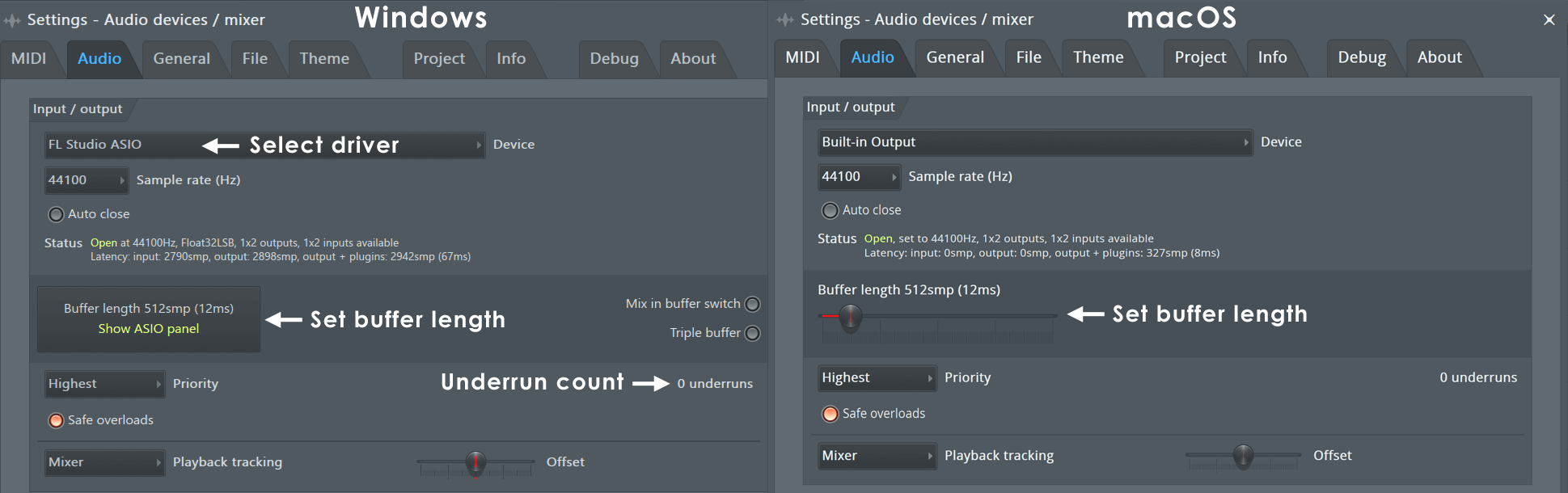
- Audio settings (drivers)
- Windows, one of the most important settings is to select an ASIO audio device driver from the Input / output menu. Look first for the native ASIO driver that installed with your audio device OR if one is not available use the Image-Line FL Studio ASIO. Whichever driver you use, download the latest from your audio device manufacturer.
- macOS - Try Aggregating your audio interface. This can improve unsolvable crackling issues, particularly during recording.
NOTE: Do not connect your audio device through a hub. Use a direct USB port connection.
- Computer and Audio Interface sample rates - Avoid sample rates above 48,000 Hz (48 kHz) such as 96 or 192 kHz. The latter one requires more than 4X the calculations compared to 44.1 kHz! ALSO make sure your computer Audio Setting Output 'Sample rate' and the Audio Interface Output 'Sample rate', plus Input 'Sample rate', all match. Everything should be 44.1 kHz (44100 Hz), or 48 kHz (48,000 Hz) if that is not available for one or more devices in the chain.
- Increase the audio buffer length:
- Apple Silicon Macs - With Apple M1, M2, M3 etc CPUs, longer buffers are not better! Apple silicon CPUs should be set to either 256, 192, 128 or 64 samples only. We recommend starting at 128 samples and raising to 192 then 256 samples if necessary. The desire to keep the buffer short relates to the CPU tending to use slower, less powerful, efficiency cores unless the CPU is put under processing-time related stress. The lower buffers ensure the performance cores are activated and buffer underruns reduced.
- Windows & Intel Macs (AMD & Intel CPUs) - Make sure the Buffer length setting is not less than 10 ms (441 samples). The Buffer length setting is found on the Audio settings page. For Windows you will need to click the 'Show ASIO panel' button there, to see the settings if you are using an ASIO driver (as you should be!). Starting from 10 ms (441 samples) keep adding 5 ms (220 sample) increments until you notice a drop in CPU usage. But there are limits, buffer lengths over 40 ms (1764 samples) make live playing difficult and will probably not help CPU usage. Some further explanation ...
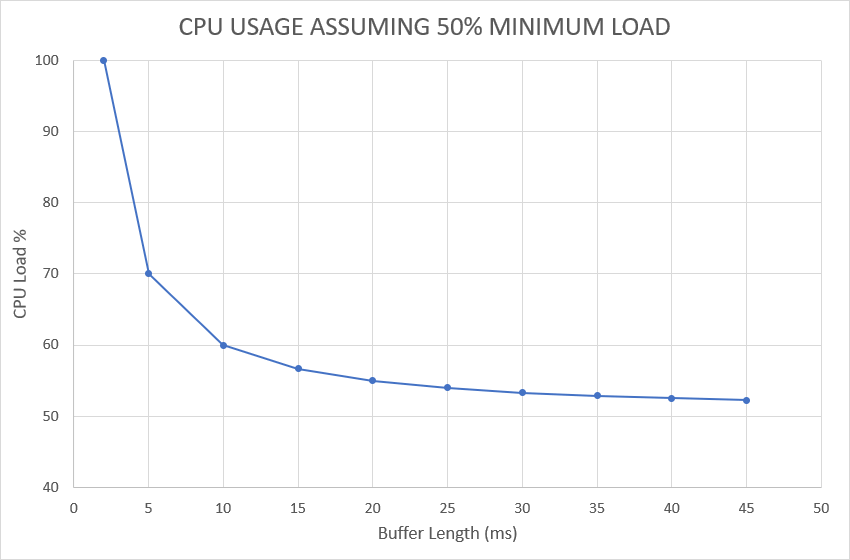
The graph shows why very short buffers are bad, and very long buffers don't help - In this example the minimum time needed to generate audio for the project is 50% of real-time. This means that no matter how long the buffer is, the computer needs half the buffers time to generate the audio to fill it.
- Short buffers - Are a problem because there is a minimum time that cannot be crossed without the CPU falling behind real-time. As the buffer size is reduced, processing time becomes an increasingly large proportion of the buffer length, and the CPU usage meter climbs rapidly. For most computers 10 ms marks this point of rapidly deteriorating CPU load. Conversely:
- Longer buffers - Do not come without a cost, as more audio needs to be generated to fill them. As the buffer time is increased the CPU load will just converge on the minimum time needed to fill the buffer. In this case, the lowest 'CPU load' achievable is 50%. So, whatever the minimum fill-time for your buffer is, that will also be your minimum CPU load.
NOTES: The graph is based on the assumption the processing overhead is 1 ms and the buffer-fill-time is 0.5 x Buffer Length (ms). For an explanation on how the FL Studio CPU meter is different from the OS CPU meter, see here. Quoted sample latencies assume a sample rate of 44100 Hz.
- Is your CPU running at full speed? Do you have some wimpy energy saving/CPU throttling
mode engaged. If you are serious about your music production then you will be prepared for, at least, some melting of the polar ice caps. See:
- Windows CPU settings - 'Start > Settings > Control panel > System & maintenance*** > Power Options'. *** Whether or not this sub-menu shows depends on your windows settings. Set your power management to 'High performance mode'. If you are running a Laptop/Tablet CPU and experiencing unexpected audio glitches or CPU spikes, try Advanced Settings and set Minimum / Maximum processor state to 99%. This can prevent the system going into turbo CPU mode, and then thermal throttling which causes issues. Related, laptops often use 'Power setting plans' set to aggressively and frequently step-down the speed of the CPU at every opportunity to save battery power. When the CPU changes speed this can cause underruns. Another reason to lock the CPU speed at 99%. Finally, ALWAYS use a laptop connected to the power supply.
- macOS CPU settings - Open 'System Preferences > 'Energy Saver' > (available option depends on your Mac model) Set 'Computer sleep' slider to 'Never' OR Check the box 'Prevent computer from sleeping automatically when the display is off'. Un-check 'Put hard disks to sleep when possible' and 'Enable Power Nap'. Laptops: Open System Preferences > Energy Saver > Un-check automatic graphics switching. Finally, ALWAYS use a laptop connected to the power supply.
- Apple Silicon vs Rosetta 2 (macOS) - FL Studio will consume more CPU when running in Rosetta 2 mode vs Apple Silicon. Full details here. NOTE: This is complex because not all 3rd party plugins you are using may be Apple Silicon native and may be bridged or translated by Apples Rosetta 2. In short, make sure all your 3rd party plugins are Apple Silicon native and FL Studio is running in Apple Silicon mode.
- Open plugins - Use the View Menu > Close all plugin windows (Alt/cmd+F12). Leaving plugin interfaces open, even when they are in the background behind other windows and not in use, can use significant CPU resources. If you have a habit of leaving windows open, time to change your workflow.
- Problem plugins - Check the Plugins behaving badly page for the correct or best 3rd party plugin Wrapper settings. Also, you may be able to identify CPU intensive plugins with the Plugin performance monitor.
- Bridged plugins - Make sure you are not bridging plugins unnecessarily. There are three common causes:
- VST library mismatches (Windows) - Make sure you are using plugins that match your version of FL Studio (32 or 64 Bit). Some people switch to FL Studio 64 Bit while their VST library is still 32 Bit OR they unnecessarily run the 32 Bit version on a 64 Bit system with mainly 64 Bit plugins. If FL Studio can't find 64 Bit equivalents of the plugins it will bridge 32 Bit versions to 64 Bit mode and vice versa. This uses more CPU than 32 Bit plugin on FL Studio 32 Bit or 64 Bit plugins on FL Studio 64 Bit.
- Apple Silicon VST Bridging (macOS) - Intel VST plugins will run in a process-bridge when FL Studio is being run in Apple Silicon mode.
- Incorrect Wrapper settings - Make sure you don't have Wrapper Processing > Make bridged activated where it is not needed or intended. The wrapper remembers settings, so deselect it for each plugin with Autosave activated. Bridging uses about 2% extra per plugin, so a couple won't matter but 10+ definitely will. Bridged plugins may also just behave badly causing pops, glitches and possibly crashes. Make sure to install 32/64 Bit versions of ALL plugins to match FL Studio. For more details see FL Studio 32 vs 64 Bit FAQ
- Sampler Channels & Audio Clips - Check how many Clips are using the 'Time stretching > Mode > Stretch or 'Stretch pro' setting. If you have a lot of Audio Clips set to this mode, they will consume far more CPU than when set to Resample. Generally, you should only use 'Stretch' mode for Clips that span a Tempo change. Otherwise, use offline stretch modes.
- Multithread support - Make sure Multithreaded generator processing and Multithreaded mixer processing are selected on the Audio Settings panel AND if you are using VST plugins, 'Allow threaded processing' is selected on the Wrapper.
- Smart Disable - Enable Smart disable on the Audio Settings and then run the Tools Menu > Macros Switch smart disable for all plugins. This will disable effects & instruments when they are not making any sound and can decrease CPU usage significantly. If this global option causes issues with any plugins it can be disabled for those individual plugins using the wrapper menu setting 'Smart disable'.
NOTE: Smart disable can interfere with some plugins, including those that are time-based, envelope based or for long-decaying effects. Issues such as audio cutting out, not starting at the expected time, or timing out of sync. If plugins misbehave when disabled, you can deselect the Wrapper Settings > Allow smart disable option. This will be remembered for future instances of the plugin. There is also a global Smart disable on the F10 Audio settings panel. Also, smart Disable is active only during live playback, it is temporarily disabled when rendering.
- Create multi-core compatible projects - Make sure that your highest CPU using plugins are routed to independent Mixer Tracks without shared 'Send' Channels. Multi-core CPUs need computational tasks that can be run simultaneously and so split across cores. Each Mixer Track represents an 'opportunity' to create these independent, parallel, processing paths. Each unit in the audio chain from the instrument through to the Mixer track and the effects must be processed in sequence on the same core. If one mixer track is linked to another, then all the instruments and effects on both Mixer Tracks now have a dependency and can't be split across cores efficiently. Symptoms of this situation are audio glitches as individual cores max-out and cause underruns while the overall CPU load still appears to be low.
Optimization Checklist
Quick reference list for CPU optimization...
- Update to the latest version of FL Studio. We made some dramatic improvements to CPU load starting with FL Studio 20.0.4 and more since then.
- Set these Audio Settings to ensure maximum performance:
- Buffer length - On Intel and AMD CPUS (Windows and macOS), make sure your buffer is not less than 10 ms (441 samples). We recommend between 10-40 ms. On Apple Silicon (M1, M2, M3 ...) use 128 samples or 64 samples. These lower buffers ensure the performance cores are activated, improving performance, which is the opposite to Intel CPUs that do better with longer buffers.
- Sample rate - Set to 44,100 Hz (or 48,000 Hz if that is not available). Sample rates such as 192 kHz and 96 kHz, will use significantly more CPU than the recommended default of 44.1 kHz. ALSO make sure the Operating System audio settings and Audio Interface driver settings (Output and Input) are set to the same Sample rate.
- Playback tracking - If not already set, try Mixer, Hybrid and Driver. Mixer can help particularly in cases where there is a misalignment between the audio and playback position or the play position indicator is lagging or jumping around erratically.
- Mixer resampling quality - Should be set no higher than 24 point sinc (lower is better).
- Reset plugins on transport - Make sure 'Reset plugins on transport' is disabled as this can cause significant glitching on start/stop events when using VST plugins.
- Priority - Set to 'Highest' and deselect 'Safe overloads' (don't worry, an 'unsafe' overload will just lock up interface controls momentarily).
- Open plugins - Use the View Menu > Close all plugin windows (Alt/cmd+F12). If you have a habit of leaving windows open, time to change your workflow.
- ASIO Options - Try the Mix in buffer switch and Triple buffer options. NOTE: If these do not help, make sure to deselect them again before proceeding.
- Smart Disable - Enable Smart disable on the Audio Settings and then run the Tools Menu > Macros Switch smart disable for all plugins. NOTE: Smart disable can interfere with some plugins, including those that are time-based, envelope based or for long-decaying effects.
- Sampler Channels & Audio Clips - If there are no Tempo changes in the project swap any Clips using 'Time stretching > Mode > Stretch or Stretch pro to use an offline stretch modes.
- Close all plugins - Use the View Menu > Close all plugin windows (Alt/cmd+F12).
- Consolidate patterns - Check for your highest CPU usage plugins using the Plugin Performance Monitor and use the Playlist Track (header) Right-Click menu option 'Consolidate this track' to convert your highest CPU usage patterns to Audio Clips.
- PPQ setting (Pulses Per Quarter note) - The PPQ setting sets the 'event' resolution for the project. That is, how finely the Piano roll and Playlist grid is divided for processing by FL Studio. This affects the smallest movements and so sampling of notes, clips and automation. Settings above 192 PPQ can have a significant impact on CPU load. Generally use 96 PPQ unless you need the extra temporal resolution.
- For projects heavy with audio-tracks - Turn OFF 'Keep on disk' for any Sampler and Audio Clip channels. This ensures samples are pre-loaded into memory avoiding underruns caused by disk-to-RAM swapping delays OR zoom out the Playlist, (Ctrl + Right-Click) on a blank area, so all Audio Clips are visible prior to pressing Play. This forces Audio Clip data to be cached into RAM.
- Reduce the plugin count - Try to reduce the number of plugins (instrument and FX). These are the most CPU hungry parts of the program.
- Limit Polyphony - Use the maximum polyphony setting to reduce the maximum polyphony of channels (see Miscellaneous Channel Settings). This often reduces dramatically CPU usage in complex melodies. You can still set FL Studio to ignore the maximum polyphony settings when exporting to wave/mp3 file (see Exporting to .wav/.mp3/.mid).
- Disable MIDI - Disable all the 'Enable MIDI...' options using the Options menu as MIDI processing uses CPU resources even when not in use.
- Playlist sluggishness - Try disabling 'Playlist menu > View > Keep labels on screen'. Mac users see here.
- Plugins behaving badly - See this section of the manual.
System related issues
- Competing & background programs - Close all non-essential programs that may be competing for resources, e.g. Instant messaging programs (AIM, MSM/WLM, Skype, Yahoo! Messenger), torrents, web browsers, audio/video players, etc. If you experience intermittent issues, check for scheduled activity like virus scans, backups, windows updates, disk defragmentation, even WiFi & Blue-Tooth adapters have been known to cause issues, particularly if they are constantly re-making flaky connections.
- Hardware issues - Unplug unused HDMI, USB, BlueTooth & FireWire devices if you are experiencing unexpected CPU spikes and glitches to discount these as causes. Also don't overlook cooling issues and thermal throttling of your CPU. When was the last time you blew the dust out of your computers cooling ventilation system/s?
- Driver issues - Update your Audio driver, Video driver and Motherboard BIOS in that order, checking each time if the issues go away. Make sure to use the latest driver from the manufacturers website for your operating system.
- Extend your memory - Check the manual page on the CPU & Memory panel. Adding more physical RAM can improve responsiveness where data was previously saved in the Page File. This is only likely to help if you are using 4 GB or less.
- CPU performance check - Search for your CPU's performance score on CPU Benchmark. Here's how we grade scores (multicore benchmarks):
- Weak - 9,999 or less.
- Medium - 10,000 to 14,999.
- Strong - 15,000 to 19,999.
- Very strong - 20,000 or more.
If your CPU is in the 'weak' or 'Medium' categories, show it respect, don't throw 30+ high-cpu load plugins at it and wonder why it chokes. Audio processing, as performed by DAW software, is one of the most CPU intensive tasks done in real-time on computers today. It's more CPU intensive than 3D games, that offload a lot of work to the video card GPU. Each audio stream needs real-time calculation of at least 44100 samples PER second multiplied by the number of plugins you are running multiplied by their own internal shenanigans. But, all hope is not lost, limitations breed creativity, work with what you have and rejoice in the democratization of modern music production. If you would like to upgrade your system, we have a detailed Knowledge Base article here on Building an Audio Production ready computer.
Psychology Reality Check
Having the lowest Buffer length setting is not a competition. If you are happy with 20 or 30 ms then that's great. Remember, the lower the buffer length setting, the higher the CPU load. We strongly recommend 10 ms (ASIO mode) as a minimum setting. At lower settings than 10 ms, most people don't experience improved 'responsiveness' and the CPU load climbs rapidly. To put 10 ms in context, the delay between touching a key on a real piano and the hammer hitting the strings for a 'pianissimo' note can be well over 100 ms (Touch and temporal behavior of grand piano actions; Goebl, Bresin & Galembo [2005]), something to ponder.