WAVE EDITOR / RECORDER
Convolution Reverb & Tool
The Convolution Reverb tool allows you to imprint the sound of one audio file onto another in a process called convolution. While it sounds complex, the process is simple. Convolution triggers playback of an 'impulse' (the audio you want to imprint on your destination file), for every sample in the destination file. If the destination file is a single click, 1 sample at 100%, then you will hear the impulse response and nothing else. If its two clicks 10 ms apart at 20% level, you would hear two copies of the impulse file layered together with a 10 ms delay at 20% of their original level. In this way convolution is similar to playing a sample on a keyboard, triggering it for every sample of the input (affected) waveform with sample playback velocity (level) tracking the value of the samples in the destination file. A reverb effect is created when a reverb 'impulse' file is convolved with the original wave file. Reverb impulse files are created by recording short, sharp sounds in real spaces or through a reverb/effects unit. The recorded 'reverberance' is an acoustic fingerprint of the real space.
A real-time alternative is Fruity Convolver.
NOTE: While called the Convolution Reverb, any audio file can serve as a source for the impulse making this a general convolution tool. As always, experimentation will reward you with unique and interesting sounds.
To Open the Convolution Dialog
To open the dialog you can either Left-click on the Convolution Reverb button
 , press Ctrl+R inside the Editor, or use the
Tools > Spectral > Convolution Reverb option.
, press Ctrl+R inside the Editor, or use the
Tools > Spectral > Convolution Reverb option.
Once an impulse is loaded you can perform any of Edison's editing functions in the spectral preview window. Right-click on the spectral preview to open the editing options
Video Tutorial
Options
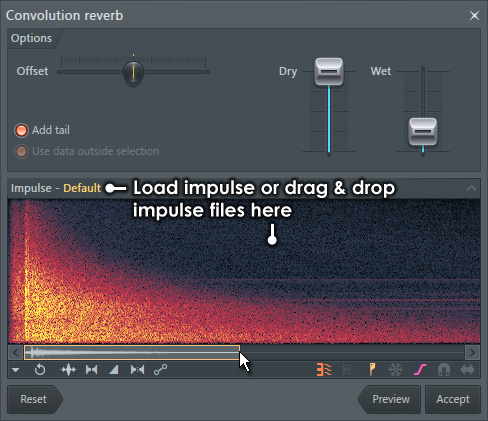
- Offset - Adjusts the time offset between the onset of the reverb and the source wave.
- Dry - Adjusts the level of the dry signal.
- Wet - Adjusts the level of the wet signal.
- Use data outside selection - The reverb can operate on a selection of a wave. When selected data from outside the selection is used to create the reverberant sounds. When no selection is made the whole sample is effected and this option is greyed out.
- Add tail - Adds new reverberant data beyond the end of the original file.
- Accept - Applies the impulse to the wave. To undo the reverb press Ctrl+Z.
Impulse
This section displays a spectral view of the impulse function. The vertical axis represents frequency 0 Hz (bottom) to 20 kHz (top) and the horizontal axis represents time. You can zoom and scroll through this display by Left-clicking in the scroll bar above the display (as shown by the double arrow cursor in the screenshot above).
- Load Impulse - Left-click on the 'Impulse:' tab above the spectral display and a standard 'Load File' dialog will open.
- Envelopes - There are several standard envelope controls along the bottom of the window that act on the reverberant sound.
These envelopes provide enormous creative potential.
Left-click the symbols to apply, from left to right -
- Pan - To edit the Pan envelope.
- Volume - To edit the Volume envelope.
- Stereo Separation - To edit the Stereo Separation envelope.
- All-purpose envelope - Can be assigned to playback velocity/direction and various other functions.
Editing envelopes - After selecting the desired envelope type, Right-click in the 'Impulse Editor Window' to add points, and Left-click to move points and tension markers. Right-click points to open a context menu that will allow you to delete points or change the curve type.
Impulse Resources
Edison comes with many impulses, however the addictive nature of these files will mean that you will soon be looking for more. Below are several links to get you started. To load a new impulse from outside FL Studio, Left-click on the 'Impulse:' tab above the spectral display to open the standard 'Load File' dialog and browse to the location of the new impulses.
- Acoustics Engineering - Some amazing spaces with pictures to inspire. See the bottom of the page.
- Voxengo Impulses - Several packs ready for download.
- Fokke van Saane's impulse responses - Many of the impulses here are .aif, Fruity Convolver can load these. We have included Fokke's site mainly because he clearly explains how the impulse response files were created and posts lots of great pictures of the spaces in which the impulses were made, be inspired!
- Google for 'Reverb Impulse' - Be brave, find your own!
Action Buttons
- Preview - Audition the current settings without applying them.
- Accept - Process and paste (replace) the original selection.