MIXING & EFFECTS
Fruity Scratcher
Fruity Scratcher is a vinyl turntable simulator. You can load any sample that is supported by FL Studio into this plugin to record your performance in real time. You can also adjust the turntable's acceleration (mass) to suit your needs. Two closely related, but more sophisticated plugins are the WaveTraveller instrument and Gross Beat effect. Note, however, that WaveTraveller is a generator rather than an effect and thus needs to be loaded into a Channel. See a video here on  how to link Fruity Scratcher to a MIDI Controller Knob.
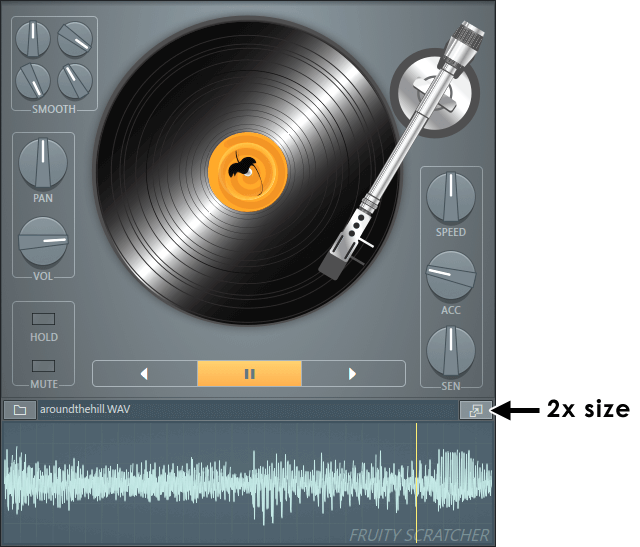
Parameters
- Smooth 1/2/3/4 - These four parameters control the 'gradient' generation of the turntable simulator. Adjusting these values may improve the results for certain types of source material.
- Pan - Sets the stereo panning of the audio output.
- Vol - Sets the volume of the output.
- Hold - Stops the turntable playing. Switch this on if you are linking the turntable platter to a MIDI Controller.
- Mute - Mutes the sound of the turntable (suitable for automation).
- Turntable Platter - Left-click and drag up/down to scratch the sample. Right-click to link.
- Play Backwards - Press to play the sample backwards, when not scratching.
- Pause - Press to pause the turntable, when not scratching.
- Play Forward - Press to play the sample forward, when not scratching.
- Speed (SPD) - Adjusts the playback speed (default: 1x).
- Acceleration (ACC) - Adjusts the motion acceleration of the turntable.
- Sensitivity (SEN) - Adjusts the turntable's sensitivity to mouse movement. The lower the sensitivity, the slower the rotation from the same mouse movement.
- Browse for Sample - Click to select a sample as the source material to be 'scratched'.
- UI expand (icon) - Makes Scratcher 2x larger for easier control with touch, stylus or mouse.
- Wave Preview - Displays a preview of the sample. You can also scratch the sample using a horizontal version of the turntable display.
Plugin Credits
- Code - Robert Conde
- GUI - Miroslav Krajcovic & Chris Beaumont (The Tone-arm and Vinyl record images were adapted from the Vector Turntable Design developed by chris3290.deviantart.com and is redistributed under the Creative Commons Attribution-ShareAlike 4.0 license.