WAVE EDITOR / RECORDER
Edison 
Edison is a fully integrated audio editing and recording tool. Edison loads into an effect slot (in any mixer track) and will then record or play audio from that position. You may load as many instances of Edison as you require in any number of Mixer Tracks or Effects slots. To open Edison press Ctrl+E in a Sampler Channel, or load from the effects menu into mixer track/s.
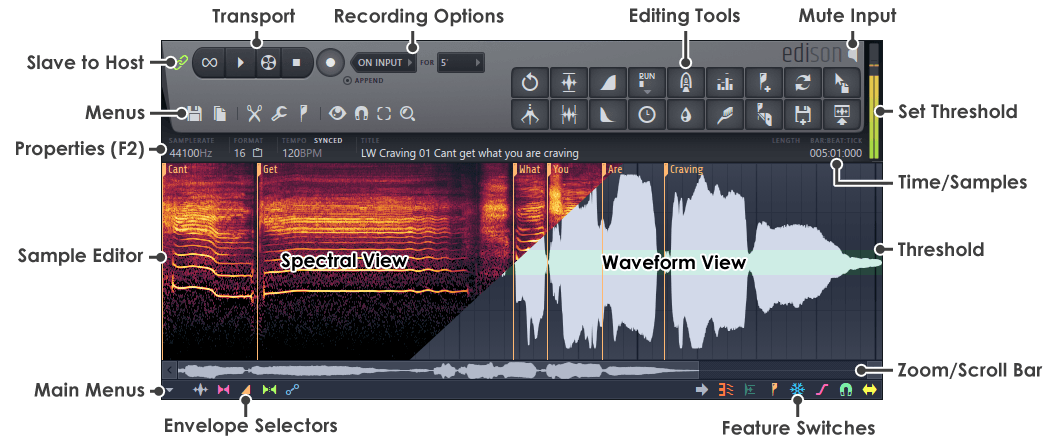
Transport Controls
Recording Options
Menu Buttons
Sample Edit Functions
Special Controls
Peak Meter
Sample Edit Window
Main Menu
Envelope Selector
Left-click the symbols to apply, from left to right -

 |
Waveform - To edit the waveform (usual select/cut/paste actions on the sample). |
 |
Pan - To edit the Pan envelope. Top is Left, bottom is Right. |
 |
Volume - To edit the Volume envelope. Ranges from 0% (0 dB) bottom to 200% top (+ 6dB) |
 |
Stereo Separation - To edit the Stereo Separation envelope. Ranges from no change (middle), mono top and maximum stereo separation at the bottom. |
 |
All-purpose Envelope - Some tools in Edison can use the envelope as an input to their process. The horizontal axis represents time while the vertical axis is the modulation value, generally 0% is at the bottom to 100% at the top. Here are some examples how you can use the envelope:
|
Preview - As there is no 'live' preview for the 'All-purpose' envelope in Edison, you will need to process the wave to hear envelope changes. To hear your envelopes, select the 'Tools' option and then Mixdown envelope or (Ctrl+E) to process the wave. The undo function can be used to reverse any unwanted changes.
Editing envelopes - After selecting the desired envelope type, Right-click in the 'Sample Editor Window' to add points, and Left-click to move points and tension markers. Right-click points to open a context menu that will allow you to delete points or change the curve type