PLAYLIST
Patterns
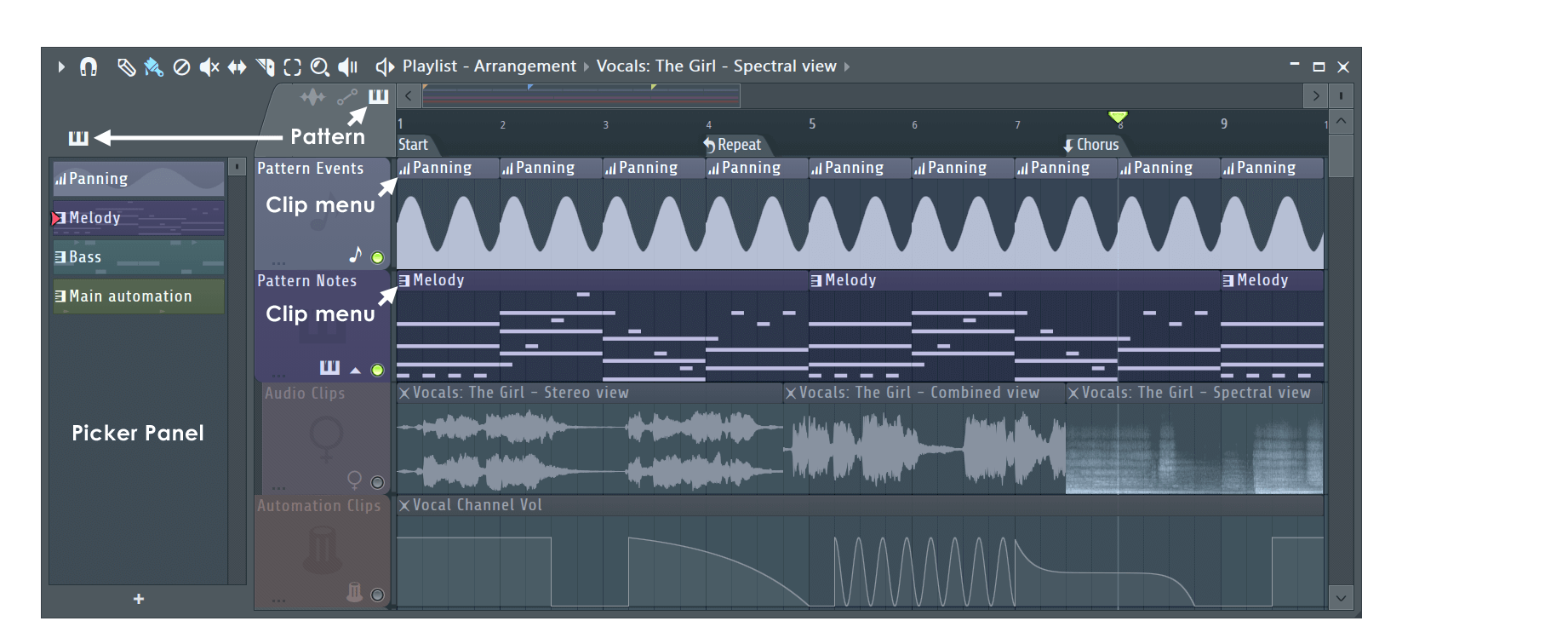
Patterns can contain note and/or automation stored as event automation data. Patterns can be placed in the Playlist as Pattern Clips. The names for Pattern Clips are displayed in the title bar of the Clip.
|
NOTE: Pattern notes and event automation can share the same clip, in this case the display will show a layered (combined) view.
Pattern Clips
There is a Patterns Menu, Pattern Clip Menu and a Patterns Selector Panel for adding patterns.
Pattern Clip Focus
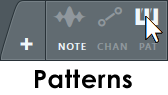
The clip focus selector (shown below) is used to focus various clip types. This is particularly useful when clips are stacked, the focused clip will be brought to the top for selection and editing. Selecting CTRL+click will focus all clips so they can be moved together.
|
- Right-Click tab - Show Pattern Clip menu.
- Note - Uses the color settings of the parent pattern (notes & event). Note color is set from within the Piano roll. Event data always displays in pink, so anyone uncomfortable about being seen using pink in the Playlist needs to 'suck it in' and stop being a 'big cry baby' about it. Alternatively, don't use this setting.
- Chan - Uses the color settings of the parent channel. Right-Click the channel button and use the color selector on the Channel re-name popup panel.
- Pat - Uses the color settings of the parent pattern.
Working with Pattern Clips
Pattern Clips can be arranged in the same manner as Audio and Automation Clips. These techniques are discussed in the main Playlist section.