CHANNEL SETTINGS
Layer Settings
NOTE: Patcher is a more flexible alternative to Fruity Layer.
The Layer Channel does not make sound, it passes note data from its Piano roll and controller input to any linked Channels (child channels). Layers can be used to create complex instruments with different samples or to mix the sound of several instruments in one Channel, controlled by a single Layer Channel. The child of a Layer Channel can be any Sampler Channel, Fruity Plugin generator or VST/AU, except another Layer Channel.
Setting Child Channels
To set child Channels:
- Open the Layer Channel so the interface is showing. You need access to the Set children button in a later step.
- Deselect all Channels (Left-click any Channel selector then Right-Click it). Just making sure there are no unwanted Channels in the layer.
- Right-Click on each Channel selector that you want to include in the layer.
- Click the Set children button on the Layer Channel and you are done.
- Select the Layer Channel and test. The Layer Channel should now play all child layers.
Things you can do: You can use a Layer Channel to create multi-sampled instruments by assigning unique keyboard regions to each child. You can include an Envelope Controller as one of the children and use it to automate the crossfade control. Here imagination is key, think horizontal (keyboard) and vertical (velocity, modulation, etc.) layering.
Options
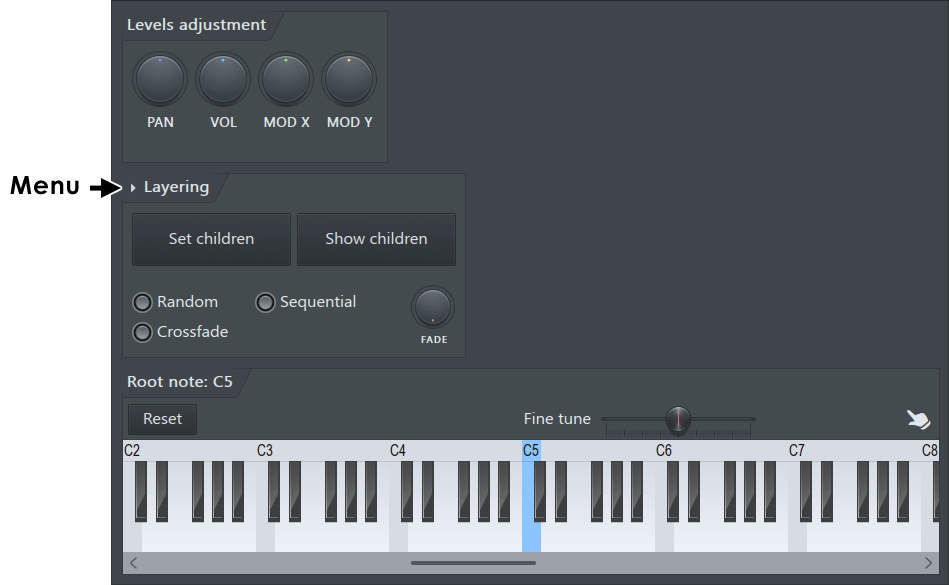
- Levels Adjustment - This section contains controls for the volume (VOL), panning (PAN) and Pitch of the linked layers.
NOTE: The levels you set in the Layer Channel apply ONLY to the notes played through that layer. If you play a child of this Channel through its own Step Sequencer dots or Piano roll, these settings will not be applied.
- Layering section
- Set children - Assigns all selected Channels in the Step Sequencer as children in this Layer Channel. When you play a note on the Layer Channel, all the children play along. To unassign a Channel from the Layer Channel, select all the Channels you want to remain as children and press the Set children button again (all unselected Channels become unassigned for this Layer Channel).
- Show children - Selects all Channels that are children of this Layer Channel in the Step Sequencer, and deselects all other Channels.
- Random - OFF: All children of the Layer Channel will sound on each note. ON: A single, random, Channel in the Layer will play. Use the 'Random' feature to make more interesting percussion sounds, for example, by assigning many similar samples to each Channel in the Layer. This will give subtle variations on each repeated note.
- Crossfade - ON: The Fade knob (below) will crossfade between two or more Channels in the Layer.
- Fade knob - Used to set the crossfade level in crossfade mode. For example; If you have 3 Layer Channels turning the Fade knob from left to right will sound: Child 1 > Child 1 + Child 2 > Child 2 > Child 2 + Child 3 > Child 3. Channels are faded from top (knob left) to bottom (knob right) in the Channel Rack. NOTE: Crossfading only works with FL Studio native format plugins, it does not work with VST/AU plugins.
- Sequential - ON: Each Channel will play in turn (round-robbin style) starting with the highest Channel working to the lowest when the 'Set children' function was used. NOTE: The system remembers the Channel order when 'Set children' was used. To re-order the sequence, rearrange your Channels and reapply 'Set children'.
- Layering menu - Click on the small arrow at the top left of this panel you can access some additional commands:
- Split children - Splits the children of the Layer Channel across the keyboard (starting with the root key of the Layer Channel), assigning each layer to a single key. The root keys of the children are automatically adjusted, so that the correct pitch is played through the Layer Channel. This feature is useful for creating drum kits or instruments where each note has different sample.
- Reset children - Resets the range and root notes for all Child Channels of a layer. Basically undoes the 'Split children' actions.
- Group children - Adds all children of the Layer Channel to a group (a popup window will appear to enter the name of the group). For more information see the Channel Filtering section in the Step Sequencer page.
- Delete children - Removes selected children from the layer.
- Preview Keyboard - The preview keyboard allows you to preview the Channel instrument (Left-clicking on the piano-keyboard), set the root key (Right-Click a key), and set key region (Left-click and drag on the ruler). See the Miscellaneous Channel Settings page for more information on using the Preview Keyboard.