INSTRUMENTS / GENERATORS
Video Player 
Fruity Video Player plays video files in sync with FL Studio's Playlist/time-line. Use it for creating music soundtracks and or effects (foley) in time with video clips. You can also use Video Player to remix audio from videos. Video Player uses the FFmpeg decoder to support the widest array of open video formats (including .avi, .mov, .mpeg, .wmv, etc). It includes SMTPE time display (see the options) to allow frame number to be displayed. A related plugin is ZGameEditor Visualizer that can render video effects in sync with the music played from FL Studio. See a  video tutorial here.
TRIAL ONLY: The Video Player needs to be purchased separately. The Trial will work with clips up to 35 seconds.
NOTES: Your video MUST include Keyframes for it to sync correctly with FL Studio. Most videos do, but if you find a video is going out of sync this may be the cause. You can re-render any video and add them if so. FL Studio is not a video rendering plugin so can't export the video footage. It can only be used to view videos and to stream audio from videos into FL Studio. ZGameEditor Visualizer can export video.
Video Tutorials
Controls
- Control Icons:

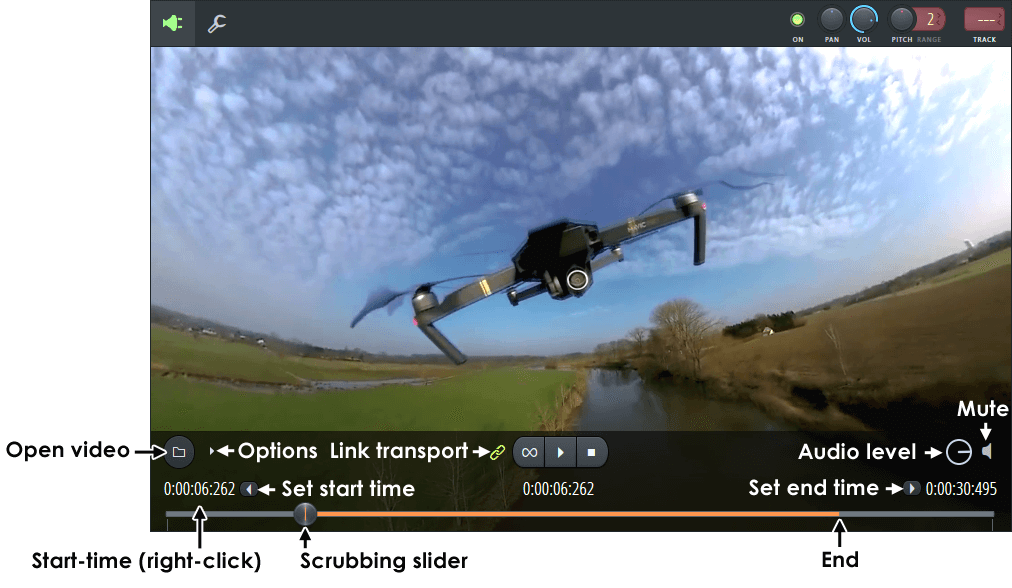
Load video - Click the folder icon and browse to your video file. 
Options: - Enable audio - Enables audio. Deselect to save (some) CPU when you don't need the audio from the video itself.
- Dock control panel - Keeps the controls over the video. When deselected controls dynamically appear on mouse-over.
- Keep aspect ratio - Maintains the videos original aspect ratio (width vs height) as the Video Player window is zoomed.
- Time display - Set the information shown on the last 3 digits of the time display (ms: Milliseconds or SMTPE format where frame-number is shown).

Link transport (H) - When selected, links the Fruity Video Player transport controls to FL Studio. That is FL Studio transport will control the Video Player, not the other way around. 
Loop (L) - Loop video playback .
Play/Pause (P) - Start playback. Use the Link control to allow FL Studio to control Video Player. 
Stop (Shift+P) - Stop playback. Use the Link control to allow FL Studio to control Video Player. 
Audio level - Level control for the audio output from the video. 
Mute (M) - Mute the audio output from the video.
Using the Video Player
- Keep video on-top - Use the Plugin Wrapper menu > Detached option so the Video Player stays on top of other windows.
- Nudge play position - Use the left/right arrow keys on your keyboard when the video is stopped.
- Fast Forward / Rewind scrubbing - Click on the scrubbing bar well ahead or behind the position of the handle. The video will scrub toward the cursor.
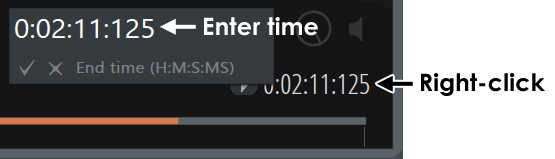
- Set play range - Move the Scrubbing slider to the start position (use the arrow keys on your keyboard to fine-tune) and click the 'Set start to slider' (S) control as shown above. Move the Scrubbing slider to the end point and click the 'Set end to slider' (E) control as shown above. Alternatively you can Right-click the Start and End time displays to enter a value precisely:
- Delayed start - You can enter a negative number to delay the video start relative to the project. A simple way to set the delayed start is to:
- 1. Set the FL Studio play position marker to the desired project start-time (make sure linked transport is selected on the Video Player).
- 2. Right-click the Set start to slider control and select 'Delay playback by:'.
- Mixer Track audio - Use the Wrapper Mixer track selector to set the output Mixer Track.
- Rip audio from a video - Open a new project and Video Player or mute all Mixer tracks except the one hosting the Video Player. Load the video and set an empty Pattern Clip at the time-limit, in the Playlist, corresponding to the end of the video. Export the project with 'Enable audio' on. Load the rendered audio as an Audio Clip.
Plugin Credits: Pierre M. (ShiniKnobz).