CHANNEL RACK
Channel Rack & Step Sequencer
The Channel Rack holds instruments that create sound and internal generators that control automation. Every pattern has access to all instruments in the rack. In other words, all patterns play from the same set of instruments. Patterns are not limited to a single instrument as they are in most other sequencers. Music data can come in the form of Step sequences and Piano roll scores.
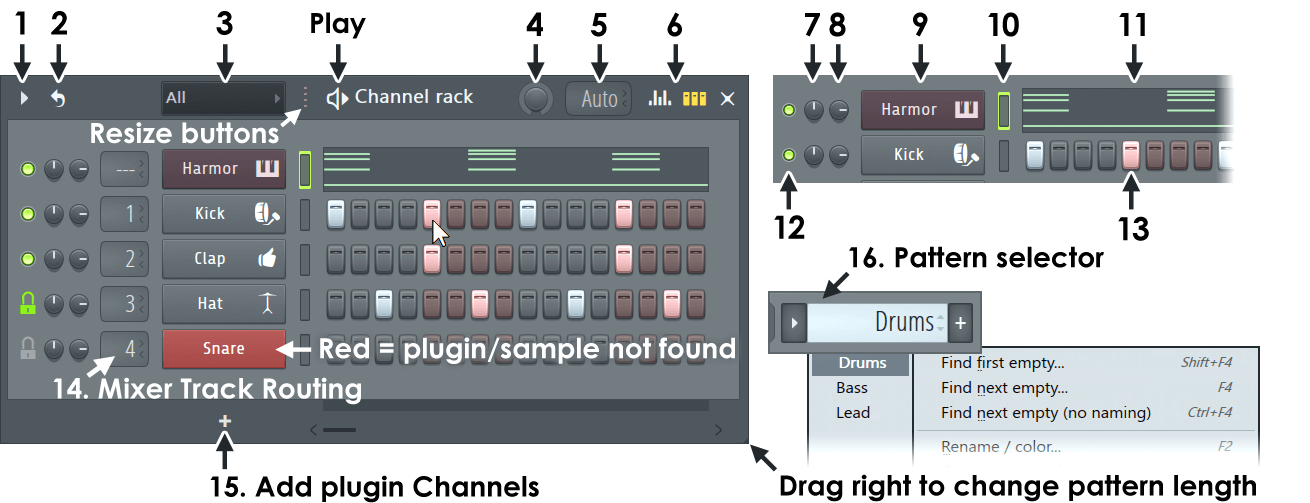
There is one Channel button (9) per instrument. The audio from each Channel is sent to one of the Mixer Tracks for effects processing and level mixing. When Instrument Channels are added or removed from the project the height of the Channel Rack will change dynamically. The Channel buttons also access Instrument Channel Settings (where a Mixer track is set) or the associated Piano roll. The Step Sequencer, ( Video Here) is a pattern-based grid sequencer ideal for creating drum loops and simple melodies.
The note and automation data visible across all Channels is known as a 'pattern'. Patterns include Piano roll, Step Sequencer and Automation data. Switch between patterns using the Pattern selector (16), located on the main Toolbar, shown below. As the pattern number is changed, note how the pattern data visible in the Channel Rack also changes, reflecting the selected pattern. Patterns are designed to be arranged in the Playlist as Pattern Clips to create a song.
Overview
Each row of controls in the Channel Rack belongs to a single Channel instrument. From left to right are: Mute, Pan, Volume, Mixer Track destination, Channel button (click this to open the instrument interface), Channel Selector (outer border) / Activity indicator (inner region) and Step Sequencer buttons or Piano roll preview (top row below), depending on how the Channel has been configured.
NOTE: When Options > General settings > Auto select linked modules is:
ON: Use (Alt/cmd+Left-Click) to open plugins without closing the currently open plugin.
OFF: Channel buttons open plugins for editing and the Channel selector LEDs select Channels for live MIDI control. This allows you to play one instrument Channel live and edit another.
1. Channel Options Menu
NOTE: The Channel Options Menu swapped places with the Pattern Menu at FL Studio 12.
- Add one - Contains a list of all Instruments selected as favorites. Choosing a instrument from this menu will add a single instance of it at the
bottom of the Channel Rack & Step Sequencer window.
Click More plugins... to open the Select plugin window, that contains a list of all instruments present in FL Studio (including Native and VST/AU ) which can be used as follows:
- To open a Channel containing a plugin - Double-click the instrument name.
- To mark an instrument as a 'favorite' - Click the check box preceding the instrument name (all plugins preceded by a check mark will appear in the favorites list).
- To add newly installed plugins to this list - Click Manage plugins at the bottom of the window to open the Plugin Manager. We recommend selecting 'Verify plugins' before you 'Find plugins'. After the scan is complete, your new plugins will be listed in the 'Select plugin' window.
NOTE: See the Browser 'Using Browser content' section for alternative (faster) ways to load plugins.
- Clone selected (Alt/cmd+C) - Inserts a clone of each selected Channel in the Step Sequencer right after it. The clone retains the instrument type of the original, as well as all of its settings, but does not contain its notes and events.
- Delete selected (Alt/cmd+Del)- Removes all selected Channels in the Step Sequencer.
- Move selected up ( Alt/cmd+Up-arrow) - Moves selected Channel/s one slot up.
- Move selected down (Alt/cmd+Down-arrow) - Moves selected Channel/s one slot down.
- Sort by - Reorder Channels:
- Color - Channels are sorted Red (top) through Green, Blue, Indigo to Violet (bottom).
- Name - Alphabetically sorted by Channel name.
- Track number - Order will be Mixer track 1 to Max. Generator and Layer Channels will be sorted to the top.
- Group selected (Alt/cmd+G) - Adds all selected Channels to a group (a popup window displays to enter the name of the group). If a group with the name you specified doesn't exist, it will be automatically created. For more information on Channel grouping see the Channel Filtering section in the Step Sequencer page.
- Color selected - Provides several options for coloring Channel buttons. Useful for grouping instrument types/sections.
- Gradient - Opens a dialog for selecting start and end colors. All selected Channels will be colored in sequence from the start to end points in the color space selected.
- Random - Colors Channels randomly. This function contains some rules on coloring so it won't look as bad as you might expect.
- Mute selected - Stop audio from the selected Channel/s.
- Unmute selected - Re-enable audio from the selected Channel/s.
- Transpose selected ... - Popup a control to transpose the selected Channel/s in semitones. Plus and minus values may be entered.
- Set swingmix for selected - Sets the 'Miscellaneous Channel Settings > Time > Swing' for the selected Channel/s. This allows you to quickly and independently adjust the swing for the selected Channel/s, since by default the Swing Mix is set to 100% for all Channels, and so they all respond to the Global Swing setting.
- Set percentage - 0, 25, 50, 75 or 100%
- Custom... - Enter a custom value at the pop-up.
- Assign selected to free mixer track(s) (Ctrl+L) - Assigns selected Channel/s to the first available Mixer Track/s.
- Zip selected (Alt/cmd+Z) - Sets selected Channels to compact view mode. Right-Click the button of a zipped Channel to unzip it. There is an option on the Miscellaneous section of the General Settings > 'Auto zip empty channels' that automatically applies this feature. This will 'compact' any Channels without Stepsequencer or Piano roll data for the currently selected Pattern.
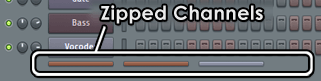
- Unzip all (Alt/cmd+U) - Unzips all Channels in the Step Sequencer.
- Restretch all (Ctrl+Alt/cmd+R) - Active only when tempo automation is used. When the tempo is automated the auto-restretch feature is disabled as it is not a real-time process. This feature allows you to adjust the tempo manually and force a restretch.
- Auto resize - Set the height of the Channel Rack to:
- Off - Height stays where it was set.
- Minimum height - Height adjusts to the minimum necessary to show all Channels.
- Maximum height - Height adjusts to the to maximum height based on the vertical space.
- Auto switch display filter - The Display Filter will change focus to show the most appropriate Filter Group (Channels) depending on the content being used in the Playlist and elsewhere. Switch it off because no-body got time for all that auto-switching. NOTE: Deselect 'Auto switch display filter' to prevent switching.
- Channel button width - Choose from preset Button widths (100% to 400%).
- Channel name alignment - Choose from Centered (default) or Left.
- Focus selected channel on playback - The selected Channel, or highest selected Channel scrolls vertically to ensure it's visible on transport events (Start/Stop).
- Mute removed steps - When selected the event data (volume, pan etc) associated with steps is preserved so settings are not lost when experimenting with different step-patterns. That is, the Piano roll notes associated with the steps are actually muted rather than deleted. This influences how deactivated steps show in the Graph Editor and Piano roll, as muted notes. When deselected the event data is discarded and underlying notes in the Piano roll are deleted.
- Show mixer track selectors (Alt/cmd+M) - Click and drag vertically to assign the Mixer track the Channel is routed to.
- Show complete piano roll preview - Shows all the notes in Piano roll previews. When deselected, the preview will only show the notes visible to match the number of bars visible in the Stepsequencer.
- Detached - Detach the Channel Rack from the FL Studio desktop.
2. Looping Controls
When selected, Channels will loop their sequences independent of the length of others. Loop icon (Right-click for more options). When the Loop icon and 'Loop all steps' are selected, the Stepsequencer will loop all Channels so they match the longest sequence in the Pattern. This replicates Channel looping mode in FL Studio 11. When looping 'ghost steps' display to indicate how Channels that are being looped and extended. Right-click the Loop icon to access the advanced options:
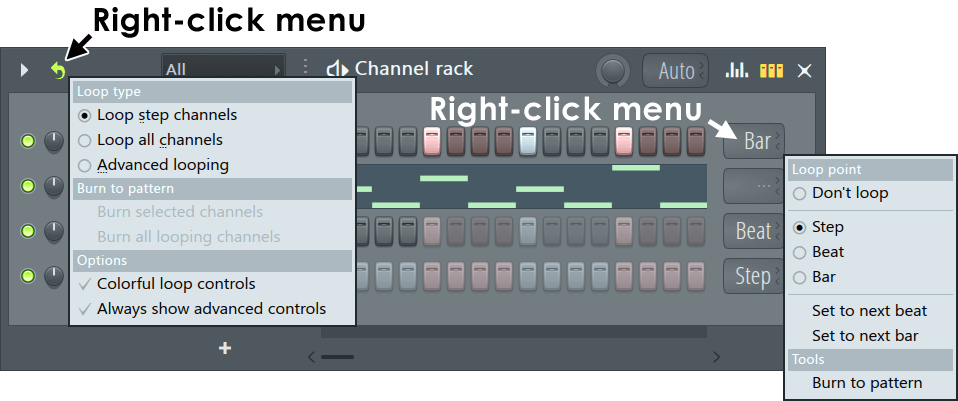
Additional looping modes are accessible any Right-clicking the loop icon. The first group affect all Channels.
- Loop step channels - Loops Channels in Step Mode (not using Piano rolls) at the next Step.
- Loop all channels - Loops both Step and Piano roll Channels at the next Beat.
- Advanced looping - Opens additional controls at the end of each Stepsequence. These options apply per-channel, rather than globally:
- ... - Indicates looping is disabled from that Channel.
- Bar - Loops the Channel at the next Bar.
- Beat - Loops the Channel at the next Beat.
- Step - Loops the Channel at the next Step.
NOTE: Bar, Beat and Step modes play to the end of the last used Bar, Beat or Step (i.e, at the next empty Bar, Beat or Step) before looping.
In Advanced looping mode Right-click the Channel control to access the following options:
Loop point:
- Don't loop - Disables looping for that Channel.
- Step - Loops the Channel at the next Step.
- Beat - Loops the Channel at the next Beat.
- Bar - Loops the Channel at the next Bar.
- Set to next beat - Sets the loop length to the next beat after the last step or note in the Pattern.
- Set to next bar - Sets the loop length to the next bar after the last step or note in the Pattern.
Tools:
- Burn to pattern - Convert from ghost to real steps in the Pattern or sequence.
- Burn selected channels - Converts the selected Channels to Stepsequences that match the longest Channel in the Pattern.
- Burn all looping channels - Converts all looping Channels to Stepsequences that match the longest Channel in the Pattern.
- Colorful loop controls - Advanced looping controls adopt the color of the Channel button (9).
- Always show advanced controls - Advanced controls will show, even when looping is deselected.
NOTE: You can edit Patterns during playback. Automatic loop length settings will (if enabled) maintain fluid playback.
3. Channel Filter Groups (Display Filter)
As projects grow in size and the number of Channels increases, finding the right Channel can become difficult. To optimize workflow, combine several Channels in a group and set the Channel Rack to display only specific Channels (for example percussion group or lead synth group). Use the Channel Display Filter control (3) to choose which Channels should be visible. Left-click to open the Channel filter menu. Selecting 'All' will show all Channels at once, regardless of whether they are part of a group or are unassigned. Selecting 'Unsorted' displays only the unassigned Channels. If you have made any Channel groups, you can select them for display from this menu.
Channel Display Filter (Page Down for next group; Page Up for previous group) - Allows you to set the group of Channels to show in the Step Sequencer (see the Channel Filter Groups section below for more information)
Other Channel filter group actions include:
- Add an empty group - Right-Click Channel Display Filter (3) and select Add Filter Group.
- Rename/Delete group - Select a group and Right-Click Channel Display Filter (3) to display commands for renaming and deleting groups (NOTE: Deleting a group sets included Channels as unassigned and does not delete the Channels).
- Add selected Channels to a new group - Use the Group Selected command from the Channel Options Menu.
- Add a single Channel to an existing group - Select the desired group and add a new Channel to the Channel Rack. All new Channels will be inserted into the currently selected group.
- Move a Channel to a different group - Select the Channel/s and use the Group Selected command from the Channel Options Menu, and enter the name of an existing group.
NOTE: To disable Auto Switching of Channel Groups that sometimes happens as you work with content (Audio vs Pattern Clips), deselect the Channel Rack Menu option Auto switch display filter.
4. Global Swing
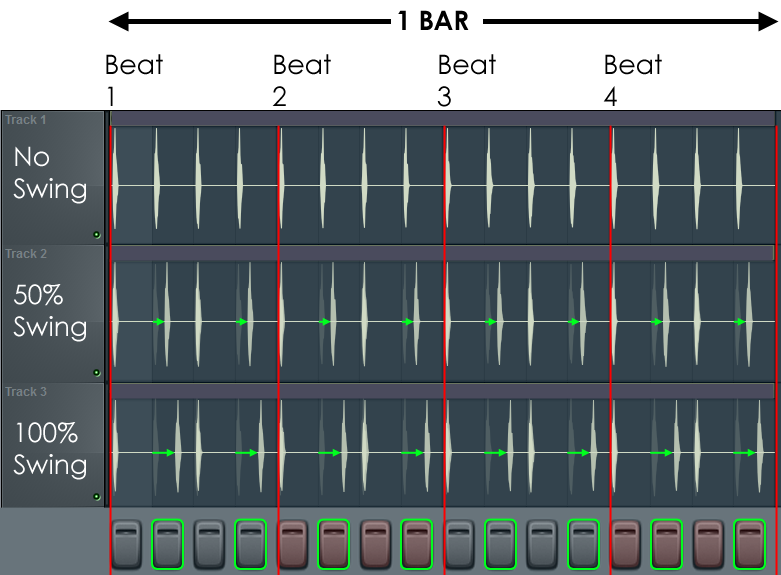
Swing - Turn right to add a 'swing' rhythm to Steps. In the case of the Step-sequencer, swing affects the length of odd vs even steps (every second step). If 4 beats per bar are set, 'swing' holds odd 16th notes (1,3,5,7,9,11,13,15) at the expense of even 16th notes (2,4,6,8,10,12 and 16) in the bar. The control determines the amount of swing.
NOTES:
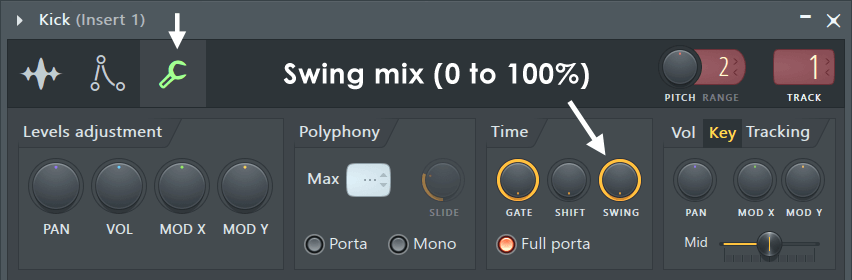
- There are two swing multiplier - Global Swing and Channel Swing. The Global Swing is a multiplier (0 to 100%) applied to all Channels. Channel Swing - 'Miscellaneous Channel Settings > Time > Swing' allows you to set per-channel swing relative to the global setting. Set this to 0% to prevent the Channel being swung, 100% to match the Global Swing amount.
- Global vs Channel Swing - Both controls are multipliers. The Global Swing activates swing for all Channels, Channel Swing decides how that Channel will respond. For example, if Global Swing is 100% and Channel Swing is 0% there will be no swing for that Channel. If the Global swing is 0% and the Channel Swing is 100%, there will still be no swing for the Channel. A Channel needs both Global Swing and Channel Swing values to be greater than 0% for swing to be active for that Channel.
- Set Swing Mix for multiple Channels - Use the Channel Rack Menu > Set swing mix for selected (Channels). For example, select set any Channels, in the current Pattern, you don't want to swing then use 'Set swing mix for selected' and choose 0%.
- Double time - As swing is applied to every second step: If you step-sequence in double-time, that is spacing out beats over twice the steps, then swing won't work as expected.
5. Pattern Length
Pattern Length - When set to Auto the length of the pattern will be set by the end of the last bar with data in it. Otherwise you can use this control to set Pattern length it from 1 to 512 steps (1/16th note to 64 bars in 4/4 time). Drag the bottom-right of the Channel Rack to expose more steps/bars. Set the default pattern length from the global value on the Project Settings. Right-click to select Pattern length in bars.
NOTE: There are a maximum of 512 steps in the Step Sequencer. If you need more then use the Piano roll.
6. Graph Editor & Step/Piano roll View
Graph Editor
Open the graph editor (Ctrl+K) and select the tabs to adjust per-step Note, Velocity, Release, Fine Pitch, Mod X, Mod Y and Shift.
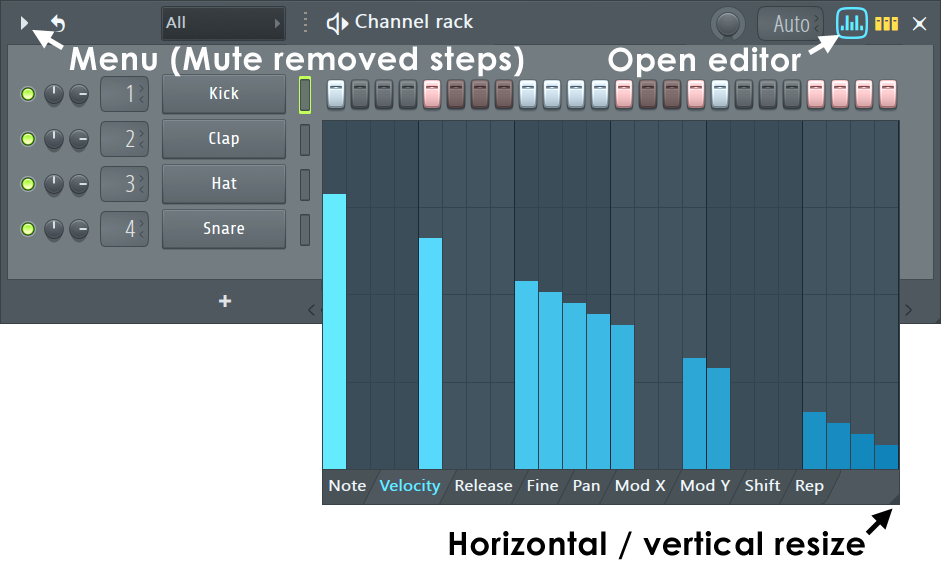
- Edit bars - Left-click a column and drag up/down.
- Scale all values simultaneously - Hold Ctrl and adjust one column, the others will follow.
- Ramp values - Right-Click a value and drag to another, the values in between the first and last step will be interpolated.
- Reset values - Alt/cmd+Click (or Click and drag across) bars.
NOTES: The Channel Rack menu option 'Mute removed steps' will decide if the graph data is remembered for deselect steps, after graph data was set. Most instruments will respond to Velocity and Pan, however, VST/AU plugins may not support all properties.
Target Parameters:
- Note - While the pitch property changes the note's pitch it is intended for use with drum samples and effects; If you want to enter a melody, use the Piano roll.
- Velocity - Note velocity (volume).
- Fine pitch - +/- 100 cents.
- Release - Note release velocity.
- Pan - Note panning, left/right position.
- Mod X - Maps to Mod X on the Channel Settings > Instrument > Mod X controls. Normally Filter Cutoff for the Channel Sampler.
- Mod Y - Maps to Mod Y on the Channel Settings > Instrument > Mod Y controls. Normally Filter Resonance for the Channel Sampler.
- Shift - Note start time offset. 100% shift equals 99% of the note position equal to one 16th note. To move a step before the correct time, delay the preceding step.
- Rep - Note repeat. Retriggers the step to create multiple notes. This feature can also be found in the Piano roll Note Properties editor.
Step vs Piano roll Preview
The Stepsequencer overlays the Piano roll and so switching to this mode allows you to edit stepsequences in Piano roll mode, so long as you respect the note length (zero length) and positioning (on beat) layout. NOTE: The Channel Rack Menu > Mute removed steps option will preserve note event data (volume, pan etc) associated with steps so settings are not lost when experimenting with different step-patterns. Deactivated steps will show in the Piano roll as muted notes. When deselected the event data is discarded and no muted notes preserved in the Piano roll.
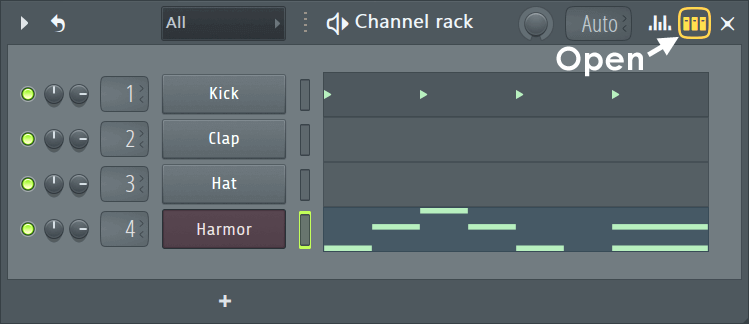
- Convert from notes to steps - If you would like to convert a Piano roll to Step mode again, you need notes of zero length. Select all notes, set Snap to 'none' and Discard note lengths (Shift+D).
- Piano roll preview - When Piano roll preview mode you can (Right-click) the Piano roll preview, when the Channel Rack menu option > 'Show complete piano roll preview' is selected, and the Piano roll will open scrolled to the point where you clicked on the preview window.
7 & 8. Pan & Volume
These knobs control the Pan and Volume of the Channel pre-mixer and so can be used as Pre Fader Level (PFL) controls. You can choose to adjust Pan and Volume here AND OR in the Mixer. What you do depends on the workflow that suits you best and how the plugin responds to these controls. NOTE: The Pan and Volume controls are sent directly to the plugin, rather than acting on the output audio, so how they are interpreted will depend on the plugin, as discussed below:
- 7. Channel Panning - Use to set the Channel panning. This is pan information sent to the plugin, so what this does will depend entirely on the plugin loaded in the Channel. All native plugins will pan, some VST/AU plugins won't respond to this parameter. Normally you would use the Mixer track Pan controls.
- 8. Channel Volume - Use to adjust the Channel volume. Levels: Samples loaded into the Channel Sampler will be set to -5dB (78%) of the original level to allow headroom for the pattern sequencer to avoid clipping, set volume to 100% to restore the original level. Audio clips will play at 100% their original level. Channel Volume for native plugins affects note voice volume directly. For VST/AU plugins it's likely to affect overall plugin output level. If this control is not working as expected, use the Mixer track Level Fader.
9. Channel Button
The Channel Button - Displays the Channel name (usually the name of the instrument). Clicked to open the interface. Additionally, there may be some icons on the left side of the button, as follows:

|
Audio track - An Audio Track is defined when a Audio Clip Channel is linked to a Playlist and Mixer Track. See here for more information. |

|
Instrument track - An instrument track is defined when a Channel is linked to a Playlist Track. See here for more information. |
Left and Right-Click functions:
- Left-click - Opens/Closes the Channel Settings window AND plugin interface (if applicable). NOTES: To keep the plugin interface open when another Channel is opened, hold (Alt)/(option) and click the Channel's Button on the Channel Rack. Keep doing this for each new instrument you wish to open. To disable the auto-close interface behavior, deselect the F10 General settings option Auto select linked modules. When 'Auto select linked modules' is OFF Channel buttons open plugins for editing and the Channel selector LEDs select Channels for live MIDI control. This allows you to play one instrument Channel live and edit another.
- Ctrl + Left-click - Preview Channel sound without opening the instrument.
- Right-Click, Channel Operations Menu - Displays the following options:
- Piano roll - Opens the Piano roll for the Channel. Notice how step-data is opened, aligned with the grid and set to the minimum note length. This is how the Piano roll recognizes step events. You can use the Edit > Discard note lengths (Shift+D) + Quantize (Shift+Q), if necessary, to return any note data to step format.
- Graph editor - Opens the integrated Graph Editor that allows you to edit Note,
- Rename, recolor and icon... - Opens the combination control for these functions. Rename or re-color the Channel using the Color Selector tool. Click on the Channel name and type to rename, or Left-click on the color square (shown below) to open the re-color dialog or Right-Click to randomly assign a color from a palette pre-approved by the Image-Line Aesthetics Committee. Once the name dialog is open, press (F2) to randomly select colors OR (F3) to select the last used color:

NOTE: To Gradient Color Channels make a selection by left-clicking and dragging down on the Channel Selectors (10) and select from the Channel Options Menu Channels > Color selected > Gradient
- Change color - Choose a color directly from the selector.
- Change icon - Choose an icon directly from the selector. NOTE: Middle-click on existing icons to directly open the icon menu.
- Load Sample - If the Channel accepts samples this will allow you to load from a file Browser menu.
- Cut self - Applies only to the Stepsequencer (See NOTE). Cuts the sound of previous notes in the Channel when new one starts. Most commonly used with percussion samples e.g. A closed Hi-Hat cutting an open Hi-Hat sample. Use the Channel Settings > MISC > Cut/Cut by settings to set up cut groups to cut any Channel with any other/s. NOTE: For Piano roll notes use the Max Polyphony (a setting of 1 is equivalent to 'Cut self') to control note cutting and polyphonic behavior. If you are trying to hard-cut notes, be aware that Mono mode allows some note overlap.
- Insert - Insert a new Channel before the selected one from the Favorites list.
- Replace - Replaces the current generator with a new one from the Favorites list.
- Patcherize - Loads the instrument in a Patcher instance for further sound design work. NOTE: Not all FL Studio instruments can be used in Patcher. Most notably; the Channel Sampler. When this is not possible the option will be greyed out.
- Clone - Makes a copy of the current Channel including settings and generator type.
- Delete - Deletes the selected Channel.
- Separate from instrument track - Breaks the link between the Channel and any Instrument Track it is associated with. This will also restore the Mixer Track selector, for the Channel, so it changes Track rather than moving it.
- Cut/Copy/Paste - Allows you to cut/copy/paste note data present.
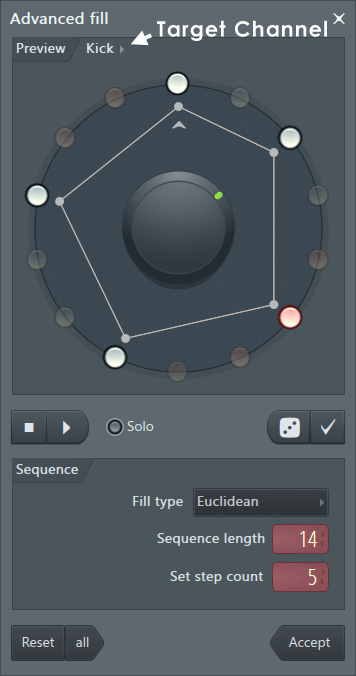
- Fill each 2/4/8 steps - Fills step sequence steps according to the setting.
- Advanced fill.. - Opens the Advanced Fill tool:
- Rotate left (Shift+Ctrl+Left-Arrow) - Move note data one snap-unit to the left. Step-notes are unaffected.
- Rotate right (Shift+Ctrl+Right-Arrow) - Move note data one snap-unit to the right. Step-notes are unaffected.
- MIDI channel through - Allows all MIDI Channels from a controller or external sequencer to pass to the plugin. Some plugins can respond to more than one MIDI Channel. For example, in Slicex MIDI Channel 1 plays Part A and Channel 2 plays Part B. Kontakt allows you to play different instruments on each of the 16 MIDI Channels. When 'MIDI channel through' is selected, changing the MIDI Channel on the controller will play the appropriate voice/instrument in the plugin.
NOTES: 1. When recording notes will be set to the note-color/s of incoming MIDI Channels. For example, MIDI Channel 1 is green and 6 is, ummmm...purple? Up to 16 separate MIDI Channel colors can be recorded simultaneously. 2.'MIDI channel through' is not available when there is no input device and 'Typing keyboard to midi' is disabled.
- Receive notes from - Select a MIDI Controller, and optional MIDI Channel, to play the selected Channel Rack instrument. The controller's note output will remain locked to the selected Channel instrument regardless of the selected Channel Button in the Channel Rack.
NOTES:
- 1. An Input Port must be set for the device to appear in the menu.
- 2. The Channel Button will display a Lock icon and the Activity LED/ Channel Selector will show Orange for locked Channels.
- 3. The linked controller will show in the Hint Bar when you mouse-over channels. See Lock Controller Notes to Instrument Channels for more information.
- Create DirectWave instrument - Opens the DirectWave Channel Sampler, a sampling-robot that will create DirectWave patches from plugins loaded on the Channel. This works for native and VST/AU format plugins.
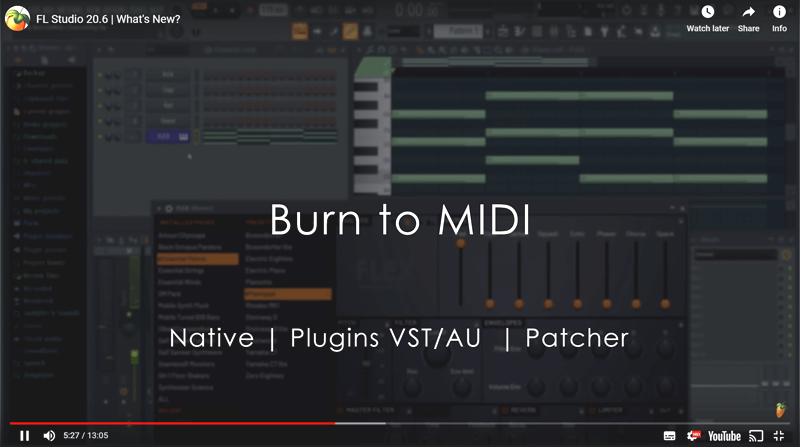
- Burn MIDI to (Current pattern / New pattern) - Records notes from the Channel to the associated Piano roll. Notes in the Channel's Piano roll drive the plugin. When this function is used, the notes that are generated by the plugin, Arpeggiator etc, are recorded back to the same pattern, or a new pattern depending on the sub-option selected. Use this function to grab notes from a Channel's Arpeggiator, VFX plugin (in Patcher) or a 3rd party plugin that generates notes. NOTE For FL Studio to see the notes coming from a plugin; 1. It must output MIDI data (just because it has an internal arpeggiator, does not mean it is necessarily outputting those notes as MIDI), 2. You must make the correct settings, depending on its type and location in FL Studio:
See a video tutorial here.
NOTE: Most MIDI generators require Piano roll (note) input before they create output notes. Make sure to add notes to the Channels Piano roll, otherwise you will see a message 'The selected channel doesn't contain any notes to burn.
- Native plugins/features - Normally notes from Channel functions (Arpeggiator) or native plugins will record without any further steps necessary. When burning Arpeggiator notes, you will be presented with a pop-up to disable the Arpeggiator and Echo functions so as not to double-up on the note effects.
- Patcher - If you are using Patcher, there must be an 'Events' connection (green cable) direct from the VFX plugin (such as Key Mapper) or 3rd party plugin generating notes to a FL Studio MIDI Port. To make an 'Events' (note) connection to FL Studio, drag the Event cable from the plugin's Event Output node to the 'To FL Studio' Output icon. A pop-up will allow you to select (any) MIDI port. This allows FL Studio to see the note activity from within Patcher.
- VST/AU Plugins - You must select a MIDI Output port in the Wrapper Settings. The MIDI port does not need to be routed to anything, this simply exposes the plugins note output to FL Studio, so it can be recorded. NOTE: Very few plugins with an internal arpeggiator publish this data to the host. This means, more often than not, this will not work with most standard instrument VST/AU plugins. Just trying to let you down gently, and save our technical support staff repeated questions about why this isn't working for plugin X or Y.
- Reorder Channels - (Shift + mouse-wheel) while over a Channel button OR (Alt + up/down arrow buttons)to move the position of the selected Channel.
10. Channel Selector
Channel Selector - When lit, the Channel is selected (used in Cut, Copy, Paste operations - see Edit menu). The selected Channel also receives MIDI/Controller input.
- Select/deselect target Channel - (Left-Click). If multiple Channels are selected this will focus the selecton to the target Channel. NOTE: When Auto select linked Channels is off, the Channel Selector LED is used to choose the Channel to receive live MIDI input. This allows you to play one instrument Channel and edit another opened with the Channel button (9).
- Select/Deselect target Channel - (Right-Click). This allows independent selection/deselection.
- Select multiple Channels - (Right-Click). Right-Click (hold) and drag down the Channel Selectors to make multiple selections.
- Select all Channels - (Double-Click) any Channel selector.
- Move / reorder instrument Channels - Use the Channel selector to group and move Channels up and down the stack by holding the (Alt) key and pressing the (up/down arrows) on your keyboard. This does not affect mixer routing.
11. Piano roll Preview
This mini-note-preview replaces the steps when a Piano roll is active on the Channel. The preview allows you to see the notes in the Piano roll without opening it. You can't edit notes in the mini-preview. Left-click the preview to show/hide the Piano roll window. Right-Click to open the Piano roll centered on the notes clicked. NOTES: 1. The lighter and darker blocks in the preview indicate the number of bars contained in the Piano roll sequence (each block is a bar). 2. To add a Piano roll Right-Click the Channel button and select 'Piano roll' from the pop-up menu.
12. Mute Control
Track Mute / Solo - Turning this LED off will mute the Channel. Clicking it again will unmute it. You can also quickly solo a Channel by Right-Clicking the LED and, from the popup menu, select Solo. Repeat this action to unsolo the Channel (unmute all). NOTE: Live MIDI input to the Channel will continue to play regardless of the switch mode as mute/solo applies only to Step Sequencer and Piano roll playback.- Mute/Unmute - (Left-Click) the Mute icon.
- Solo/Unsolo - (Ctrl+Left-Click), (Alt/cmd+Left-Click) OR (Right+Click) and Select 'Solo' on the Mute icon. NOTE: The General Settings > 'Restore previous state after solo' option will preserve the pattern of muted and unmuted items prior to a Solo action.
- Mute/Solo a group - (Alt/cmd+Click) a Mute icon for the Muted/Unmuted group. Groups are defined by Channel Filter groups.
- Lock state - (Shift+Click) a Mute icon.
13. Stepsequencer
Using the Stepsequencer (see also Graph Editor):
- Each line in the Channel Rack belongs to a single Channel and the associated sequence data will only play the Channel instrument on the same line. From left to right you will see, the Pan, Volume, Channel button (opens the instrument interface) and Step Sequencer buttons or Piano roll preview, depending on how the Channel has been configured.
- Each button (step) in the grid represents a 16th note.
- Default beats per bar and bars - The default is 4 beats x 4 bars = 16 steps. Change the default number of bars and steps from the Project General Settings window.
- Activating & deactivating steps - Left-clicking a step button activates that step; Right-Clicking turns it off. NOTES: The Use Both Mouse Keys option in the General Settings page can be deselected so you can select and deselect steps with the left-mouse button. The Mute removed steps option will decide if deleted steps are muted, so their event data is preserved or discarded.
- Pitch - To set the pitch of a step use the left Graph Editor (6) or right Piano roll (6) then click on (11). Each note has some additional properties (panning, volume, etc.).
- Copy, Cut & Paste - This will work between Channels or Patterns. Select the source Channel, click on the Channel selector (10), and press (Ctrl+C) to copy or (Ctrl+X) to Cut the steps. Next, select the destination Channel and press (Ctrl+V), paste. NOTE: You can access the same functions from the Edit Menu
- Stopping or cutting notes - Step Sequencer steps do not have a 'note off' feature. You can stop a note either by activating step after the offending note with zero velocity or, preferably, by using the Piano roll. The Piano roll is ideal for working on more complex melodies.
- Edit steps in the Piano roll - Right-Click the Channel Button and select 'Piano roll.
- Advanced features - Right-Clicking the Channel Button (9) opens a menu of commands for managing Channels (see Channel Button Menu). This menu also provides access to the Piano roll.
- NOTE: The main Edit menu also contains commands for working with Step Sequencer.
14. Mixer Track Routing
- The Mixer Track Routing - Controls are optionally shown (Alt/cmd+M). Click and drag vertically to change the Mixer Track the Channel is routed to. By default, all new instrument Channels are routed to the Master Mixer track (the display shows "---"). This control doesn't appear for Channels that hold generators that don't output audio, icons will be shown instead. The Mixer Track Routing control is also replicated on the Channel Settings.
- Instrument and Audio Track Mixer routing - Channels stay linked to the selected Mixer Track as the routing selector is changed. The selector dims to indicate that it is part of a grouping. Mixer Tracks then move instead of re-routing when the control is adjusted. When grouped routing automation is not possible. To re-route an Instrument or Audio track group, first Right-click the Playlist Track header and choose Track mode > Unassigned, then to re-route the Instrument Channels as needed.
15. Add Plugin Channels
Add a plugin - This is a shortcut to open the Channel Options Menu > Add one menu. To lean more ways to add both instrument and effect plugins to projects click here.
16. Pattern Selector vs Picker Panel (Playlist)
There are two main ways of managing and selecting Patterns. The Picker Panel and the Pattern selector. We recommend the Picker Panel. It has the advantages of being associated with the Playlist (so is always handy), allows drag-n-drop workflow and can multiple select, rename and color Patterns.
Red Channel buttons
If you open a project and some, or all, Channel buttons are red, this means the samples or instruments nominated for those Channels can't be found. The likely causes are -
- The samples or folders have been renamed, moved to another location or deleted.
- The format of the sample has been changed (FL Studio only loads .wav, .mp3 and .ogg files).
- The Browser extra search folders have been deleted from the search list.
- The VST/AU plugins extra search folder has been deleted from the search list or the plugin folder moved.
FL Studio searches its own installation folder for samples and the extra search folders as described above. If you have no idea where the samples are, one method is to put your root drive (usually C:) as one of the extra search folders, then reload the project. FL Studio will now search you entire hard-drive. Once you locate the samples it's a good idea to remove the root from the extra search folders as is can make future searches very slow. See the section on missing VST/AU s or files for more information.
Linking Controllers to Play Instrument Channels
Use a keyboard or other controller to play selected Instrument Channels. By default FL Studio listens to all MIDI Channels, so any enabled controller will play the selected Channel. However, if you want to lock a controller to play a specific Instrument Channel, there are two options:
Lock Controller Notes to Instrument Channels
This method locks Instrument Channels to the note output from the specified controller. You can lock multiple Instrument Channels to a single controller to record layers OR even lock several controllers to a single Instrument Channel.
How to set a Channel to receive notes from a MIDI Controller:
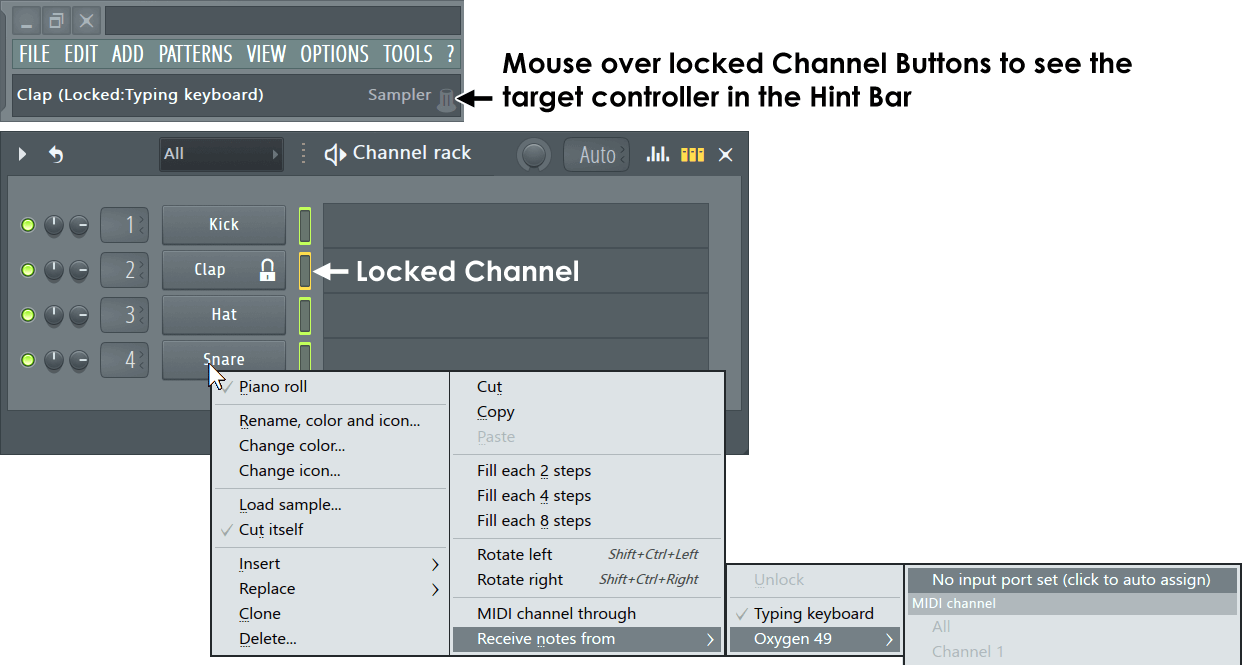
- To set a specific MIDI Input Port (optional) - Pre-set an Input Port from the MIDI Settings > Input > Port options. Otherwise choose 'No input port set (click to auto assign)' at the next step.
- Right-Click the Channel Button - Select 'Receive notes from > [choose a controller] > No input port set (click to auto assign)'.
- To set a specific MIDI Channel - After choosing the controller (Step 2), repeat the process and select a MIDI Channel. Normally choose 'All MIDI channels'. If you choose a specific MIDI Channel, the instrument will only respond to controller notes received from that controller and MIDI Channel. You can use your controllers ability to change MIDI Channel to swap between Instrument Channels on the fly. TIP: If your controller can transmit on different MIDI Channels across the keyboard/pad range, you can play different Instruments Channels with the left and right hands, or a drum kit consisting of up to 16 Sampler Channels.
IMPORTANT: Only the note information is locked to the Channel. To assign knobs and sliders (MIDI CC) to specific plugin targets, use Per-Project Links.
Features of locked Channels:
- The Channel Button will display a Lock icon.
- The Activity LED/ Channel Selector will show Orange.
- The linked controller will show in the Hint Bar when you mouse-over Channel Buttons.
- You can lock Multiple Channels to the same MIDI controller to create Layers.
Floating Assignment of Controller Notes to Instrument Channels
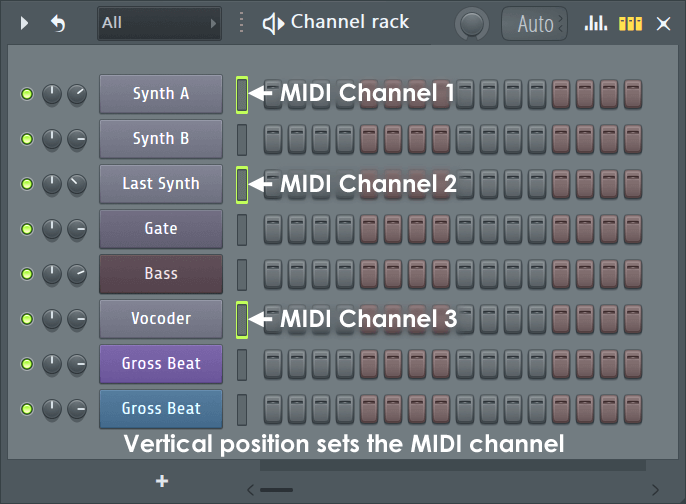
This method is less rigid than the 'Receive notes from', above and is how FL Studio worked prior to FL Studio version 12.3. Selected instrument Channels are assigned to controllers based on their MIDI Channel number. For this method to work you must set each controller to transmit on a unique MIDI Channel (i.e. 1 to 16). The lowest MIDI Channel will control the top-most selected Instrument Channel and the highest MIDI Channel the bottom-most selected Instrument Channel (see the image below).
- Set MIDI Channels - Set each controller to transmit on a different MIDI channel number (1 to 16, see the documentation that came with the controller on setting MIDI send/transmit channels). This is to avoid controller CC conflicts (where more than one controller tries to adjust the same software control on the same MIDI channel). See the documentation that came with the controller on setting MIDI send/transmit channels. By default, FL Studio listens to MIDI data in OMNI mode (all channels 1 - 16 simultaneously).
- Select Instrument Channels - Right-Click Channel Selectors for as many Channels in the Channel Rack as you have active controllers. The controller transmitting on the lowest MIDI channel number will be assigned to the top-most selected Instrument Channel. Selected instrument channels below are assigned by ascending MIDI channel number (i.e. lowest MIDI channel = top selected instrument channel, highest MIDI channel = bottom selected instrument channel). When only one channel is selected then all controllers will play that instrument channel. When more instrument channels are selected than there are active MIDI controllers, then top most instrument channels will be assigned.
- Changing controller to plugin relationships - The simplest method is to move the target Instrument Channel up/down in the Channel Rack stack (select the target instrument channel, hold the Alt key and press the up/down arrows on your keyboard OR Shift+Mouse-wheel with your cursor over the Channel button). Remember that instrument channels are assigned to controller MIDI numbers, from top to bottom in the stack.
NOTE: When Options > General settings > Auto select linked modules is:
- ON: Use (Alt/cmd+Left-Click) to open plugins without closing the currently open plugin.
- OFF: Channel buttons open plugins for editing and the Channel selector LEDs select Channels for live MIDI control. This allows you to play one instrument Channel live and edit another.