INSTRUMENTS / GENERATORS
Speech Synthesizer
Windows Only - The Speech synthesizer processes text to create computerized or Vocoder-like vocals to your projects. The *.SPEECH presets are supported by all native FL Studio plugins that use custom samples for synthesizing, i.e. Sampler, Granulizer, Fruity Slicer and Fruity Scratcher.
How to open the Speech Synthesizer
The speech synth is not a stand-alone instrument so does not appear in the add-plugin list, it is a pop-up dialog that processes text to audio then renders the result as a sliced Audio Clip. To add speech samples to your project two common methods are:
- Drag a speech preset from the Browsers Speech directory to an empty Channel (or plugin that accepts a .wav file). The settings dialog will open, modify the text to your liking and then click OK to apply the preset to the Channel.
- Right-click a speech preset in the Browsers Speech directory and choose either 'Open in new Fruity Slicer Channel' or 'Open in new Slicex Channel'. After modifying the speech to your liking in the Speech properties window, either plugin will give you word-by-word playback capability.
Speech Properties Dialog
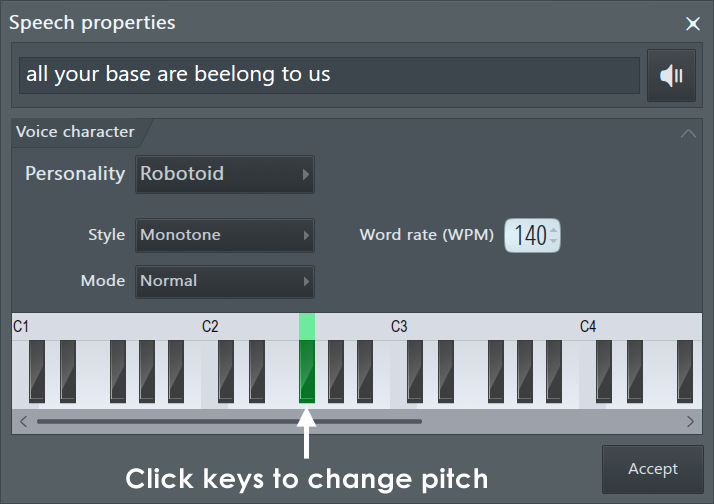
Text
- Speech Text box - Enter here the text to be synthesized by the engine.
- Listen button - Click to preview the sample based on the current settings.
Voice
- Personality menu box - Click this box to select voice personality. The personality changes the timbre of the voice used. The rest of the voice settings are also set to the defaults for the personality selected.
- Style menu box - Selects intonation style for the voice. Monotone/Sing uses constant pitch for all words. Natural resembles a natural talk intonation. Random select random pitch for each word.
- Mode - Select the amount of noise mixed in the voice generated. Normal uses natural levels for the noise mixed in the voice. Breathy uses more noise to create 'breathy' voices. Whispered uses only noise for the voice synthesis, thus creating 'whispered' voice effect.
- Rate LCD - Sets the speed of the voice.
- Pitch keyboard - Click a key to see the pitch of the voice.
Process text
- Accept button - Applies the speech preset to the generator/effect selected. If you have changed some of the settings in this dialog, you will be prompted to save the preset with a new name.
Speech Text Formatting
- Pitch shifting of separate words - You can pitch offset any word by placing an offset amount, in semitones, after the word as a number as follows: "Semitone up(1), 2 semitones down(-2)". So, if the base pitch was F#, the word "up" will have pitch G (one semitone higher), the word "down" will have pitch E (two semitones lower).
- Separating words - To get more natural sounding speech patterns, try replacing spaces " " with underscores "_". For example: From "This is example sentence" to "This_is_example_sentence".
Note that underscored sentences are recognized as a single word by Fruity Slicer and may not be sliced properly (see below).
Fruity Slicer Support
When you open a speech preset in a Fruity Slicer Channel, the sentence is automatically sliced so each word resides in a separate slice. Because of this feature, a BeatSlicer grid (*.zgr) file is automatically generated by the Fruity Slicer Channel, that contains the sentence.