WAVE EDITOR / RECORDER
Edison 
Edison is a fully integrated audio editing and recording tool. Edison loads into an effect slot (in any mixer track) and will then record or play audio from that position. You may load as many instances of Edison as you require in any number of Mixer Tracks or Effects slots. To open Edison press Ctrl+E in a Sampler Channel, or load from the effects menu into mixer track/s.
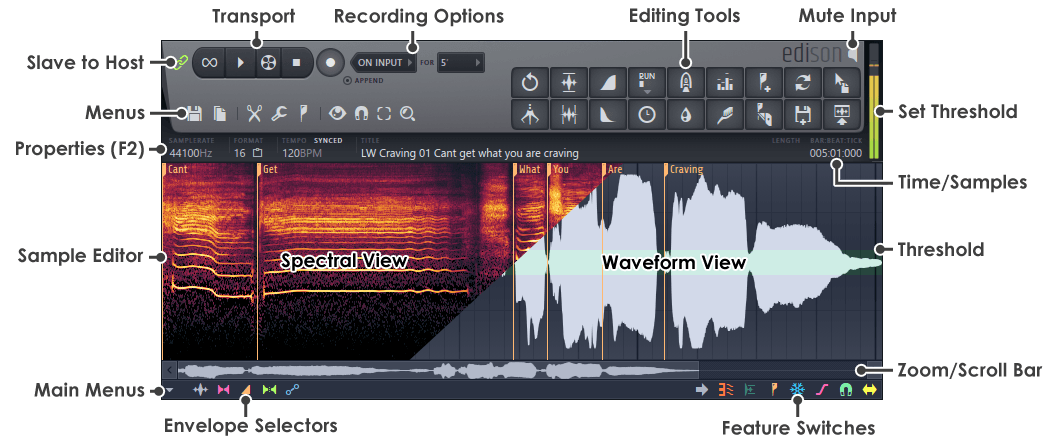
Transport Controls
Recording Options
Menu Buttons
Sample Edit Functions
From left to right:
 |
Undo/undo history - Left-click to undo the last action. Right-click to display the last 10 actions (Left-click the point in the history you wish to return to). |
 |
Claw Machine - Opens the Claw Machine Tool that creates new rhythms based on the knowledge that less is more! |
 |
Normalize/normalize regions - Left-click to normalize the current selection. Right-click to normalize on a per-region basis. |
 |
Trim side noise/gate noise - Left-click to trim noise outside the selected region. Right-click to gate noise below threshold. |
 |
Fade in/declick in - Left-click to fade in. Right-click to smooth in (removes clicks). |
 |
Fade out/declick out - Left-click to fade out. Right-click to smooth out (removes clicks). |
 |
Run script - The Script Tool compiles and runs scripts written in Pascal or Visual Basic, to process the wave file. Right-click to use the Run last script option. See the Tools Menu (Scripting) 'Run Script' option (above) for more details. |
 |
Time stretch / paste stretch - Opens the Time Stretch / Pitch Shift Tool to independently manipulate pitch, time and formants. |
 |
Convolution Reverb - Opens the Convolution Reverb Tool to apply reverb or convolution effects to the sample. |
 |
Blur - Opens the Blur Tool to smooth/blend the sample data. |
 |
Equalize - Opens the Equalize Tool to apply an EQ curve to the sample data. |
 |
Clean up (Denoise / Declip / Declick) - Opens the Noise Removal Tool to repair noisy, clipped or clicking samples. |
 |
Add / remove marker / region - Left-click to add/remove a new marker at the start of the selected region. Right-click to add region markers bounding the selected region. Shift+Right-click on a marker to invoke temporary zoom for precise positioning. A 'Marker' is a position flag, with an optional name, description and middle note. A 'Region' is a marker plus an end point. Right-click markers (tag at the top of the marker) to set a name, trigger note etc. |
 |
Auto-slice - Auto-slices the sample. |
 |
Tune loop.../set loop - Left-click opens the Tune Loop Tool to access to the loop smoothing controls. Right-click sets loop points bounding the current selection. |
 |
Save as.... / save as compressed... - Opens a save file dialog with the options of .wav and compressed .wav (ogg format). |
 |
Drag / copy sample / move selection - Left-click and drag the button (yes the button) to the desired location. The selected region in the
Sample Edit Window (or whole sample if no selection is made) will be copied and moved to any compatible location in FL Studio, e.g. Sampler channels, Fruity Slicer, DirectWave, the
Playlist, etc. Right-click to copy the selection to the clipboard.
NOTE: Other ways to export audio can be found under the Tools menu -
|
 |
Send sample to Playlist - Left-click - Sends the selection (or whole sample if no selection is made) to the Playlist as an Audio Clip. Right-click - Replaces the currently selected Audio Clip or Sampler Channel with the sample/selection in Edison. |
 Tools > Sequencing