SYSTEM SETTINGS
System Settings - General






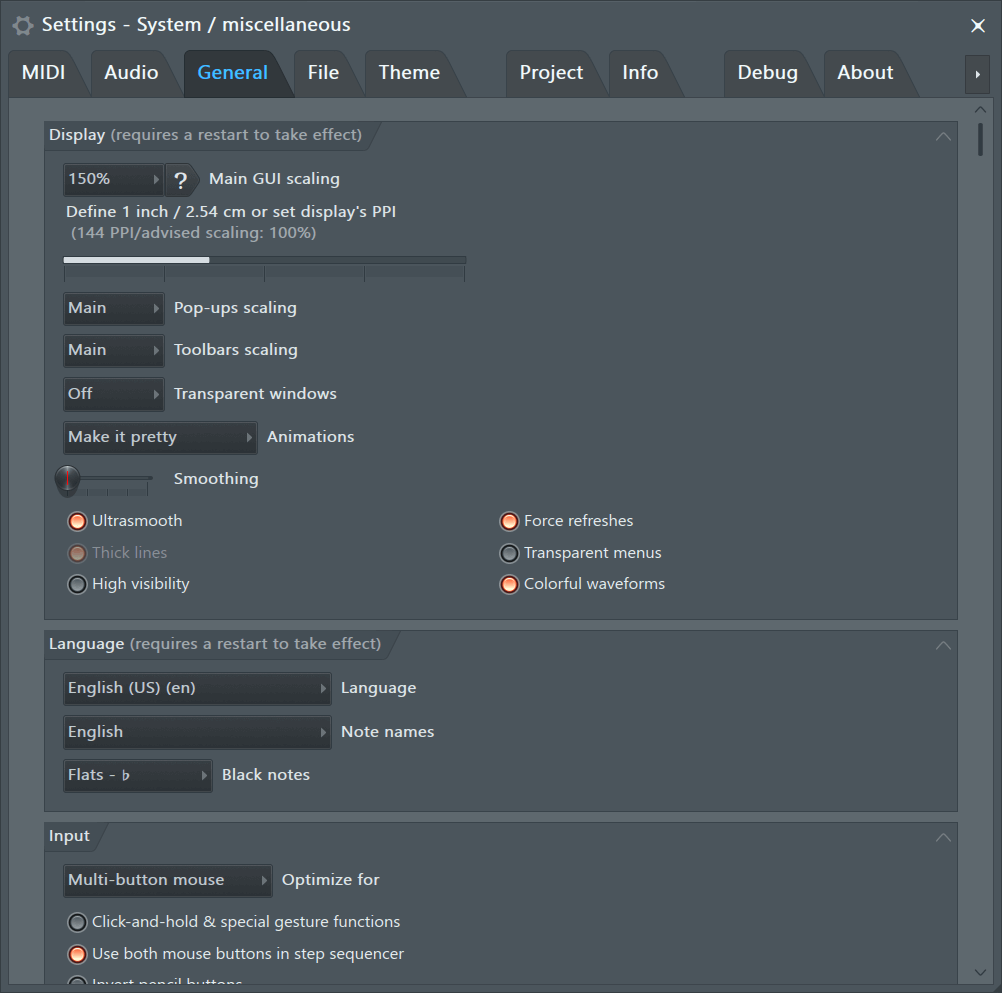
To open the General Settings choose 'Options > General settings' from the main menu or press the F10 function key on your keyboard. The General Settings page contains various general settings of the working environment in FL Studio.
GUI Display
These settings allow you to rescale FL Studio's vectorial Graphical User Interface (GUI), including separate options for pop-ups, menus and the cursor. GUI up-scaling is intended for use with high resolution displays. NOTE: Native and VST plugin GUIs can also be rescaled as described below.
- Main GUI Scaling (requires FL Studio restart) - Normally leave this set to System and all other related controls set to Main, so they follow system scaling too. If you have set your Windows 'System scaling' to work correctly on your monitor, say 200%, then FL Studio will be scaled correctly to 200% also. To adjust Windows system scaling open the Windows Control Panel, click on Display > Custom Sizing Options. From there adjust GUI zoom percentage selector. You can also click 'Custom resizing options' and type a value in percent. However, because we know you like to fiddle with things, you can manually rescale the FL Studio interface and plugins with the options provided below. At resolutions between 3840x2160 (UHD 4K) and 5120x2880 (5K) zoom settings between 125% and 200% should work. Optimum scaling factors are a matter of screen resolution, monitor size and your eyesight.
Plugins - Native (FL Studio) and VST plugins can be rescaled as follows:
- FL Studio native plugins - Use the Legacy scaling option, in the 'Advanced settings' section below. Usually this is set to 'Main' and should follow the setting above. This will apply to all native plugins.
- VST Plugins - See the Wrapper section on Rescaling VST Plugins. There are different settings to use depending if the plugin has native rescaling (Bridged + DPI aware when bridged) or no native rescaling (Bridged + External window).
NOTE: Set the scaling of the mouse cursor under the 'Advanced' section. Yes the cursor size is an advanced feature.
- Define 1 inch / 2.54 cm or set display's PPI - This is a calibration to ensure touch-screens work correctly. From Windows 8.1 onward the screen PPI is automatically detected, so usually you do not need to change this from the default. The value does not change the appearance of the FL Studio GUI, but can have an effect on some plugins if set incorrectly. Usage: If you are having issues with the accuracy of touch on Windows 7, set once, correctly, and forget. If you know the Pixels Per Inch (PPI) of your monitor then drag the bar and set it to that value OR use a ruler on the screen to set the length of the bar to approximately 1 inch or 2.54 cm.
- Pop-ups scaling (requires FL Studio restart) - Applies to pop-up menus and interactive dialogs (like Piano roll tools). When set to 'Main' Pop-ups will follow the Main GUI scaling, otherwise make an independent setting here.
- Toolbars scaling (requires FL Studio restart) - Applies to tool-bars. This can be useful for smaller tablets, so instead of hiding toolbars that use too much of the screen, you can make them smaller. When set to 'Main' Toolbars will follow the Main GUI scaling, otherwise make an independent setting here.
- Animations - Controls menu, mouse related, overlay and pop-up animations. At the lowest level (Don't distract me) all animations are off, at the highest level (Entertain me) prepare to be 'entertained'. NOTE: Animations generally don't increase CPU load, sometimes higher animation levels use less CPU.
- Transparent windows - Options include:
- Off - No transparency for inactive windows. Real-men don't do transparency, this is the option you want. The other options below are for the weak!
- On - Transparency for inactive windows, both attached and detached.
- Smoothing - GUI/control motion smoothing factor, slide left for less smoothing and right for more smoothing.
- Ultrasmooth - Increases smoothness (frame rate) of all animations.
- Right-Click > Surface pro hack - Off by default. This should only be tried if there are problems with the way the FL Studio windows are drawn (or refreshed) on Windows devices. NOTE: This can cause some windows capture programs to produce 10x larger files than normal. If so, disable.
- Thick lines - Purely aesthetic, affecting how things are scaled at 200% and above.
- High visibility - Useful for those with color/vision deficiencies. Includes, switches and selected icons becoming more obvious. Displays hover rectangles around (most) switch buttons/icons. Scrollbars show hover color (white). Menu captions are copied to menu hints. NOTE: FL Studio must be restarted to apply these changes.
- Force refreshes - Forces the Desktop Window Manager to update, changing, windows on-time. This may reduce 'ghosting' on fast moving animations and help with some graphical glitches. It also forces all visible windows to be refreshed rather than just the portion that has changed. This can increase CPU load with certain plugins.
- Transparent menus - Transparency is applied to Menus. Don't do it, it sucks!
- Colorful waveforms - Color is mapped to the predominant frequencies in the audio. Reds are lower frequencies such as bass or the sustain of kicks, blues are higher frequencies such as transients and the splash of cymbals. There is a color gradient from red to blue as there frequencies from low to high. This option affects waveform preview displays in the Browser, Playlist, Sampler Channel etc.
Language
- Language - Choose a display language for the FL Studio user interface and (most) Image-Line plugins. NOTE: After changing the language, a Toolbar Language Icon will be added.
- Note names - Choose the language/convention used to display Note Names in the Piano roll and other places.
- English - C, D, E, F, G, A, B.
- Germanic - C, D, E, F, G, A, H. NOTE: H flat is B.
- Neo-latin (Solfege) - Do, Re, Me, Fa, So, La, Ti.
- Black notes - Set to default as Sharps or Flats where Note names are displayed.
- Update languages - Check the FL Studio server for updated languages.
NOTE: These options require an FL Studio restart to take effect.
GUI Input
- Optimize for - These are pointer-device options.
- Multi-button mouse - Standard settings when working primarily with a mouse.
- Pencil - Use when working with knobs and up/down controls on a pencil-based tablet. After touch, horizontal position changes target control sensitivity. To make course changes stay in the vertical axis of the target control. To increase sensitivity click, hold and move to the left or right and then drag vertically.
- Multi-touch monitor - Multi-touch generally assumes finger control, so touch 'hot-zones' are made larger. Horizontal position after touching a control will change sensitivity/accuracy (as per pencil interfaces above).
NOTES: See the section on Multi-touch gesture support. Tweak 'Smoothing' as shown above to optimize the responsiveness of controls.
- Click-and-hold & special gesture functions - Piano roll functions include:
- Copy note: Hold a note to copy it.
- Cycle slide/porta: Click and hold when adding a note to cycle through slide & porta event modes.
- Glue notes: Place the cursor between 2 neighbor notes, so the resize cursor appears, then click and hold to glue them.
- Snap note sides: Snap either side of a note to the grid.
- Cycle tools: Right-Click a tool and use the Mouse-wheel to select other tools.
- Mouse-wheel velocity: Use Mouse-wheel while holding notes to change velocity.
- Mouse-wheel tools: Change tools by holding right click and rolling the wheel.
- Other functions: Middle mouse click (zoom out full).
- Use both mouse buttons in Step sequencer - Left-clicks activate steps, Right-Clicks deactivate them. When disabled, use the Left mouse button to activates and deactivates steps.
- Vertical / Horizontal scrolling speed - Independently control vertical and horizontal scrolling speed of your mouse. Scrolling is normally associated with the wheel/s.
- Invert pencil buttons - Swaps the functions of the Primary and Secondary buttons on surface-style pens.
Undo History
- Maximum undo levels - Sets the maximum undo steps kept in the edit history.
- Undo knob tweaks - Enables undo of all automatable controls (sliders, knobs and check boxes) in the edit history. It can cause some performance problems with certain plugins, like X-Y Controller and Scratcher so the default value of this option is off.
- Alternate undo mode - (Ctrl+Z) will step back through the Undo history, rather than alternating between Undo and Redo (since Undo was the last action).
- Put undone recordings in the recycle bin - This refers to the Operating System recycle bin (trash). If you deselect this, then recordings that are undone will be lost forever, and that is a really long time.
Warnings
- Manage warning messages - Allows the convenient selection or deselection of all pop-up warning messages, for which you, or annoying other people messing with your FL Studio installation, have clicked 'Don't ask this in future' or Don't show this again'.
- Project data size warnings - Set the maximum size a FL Studio (.flp) project will save, before warning you about the size of the file. Some plugins save their internal sample data along with the FL Studio project including Edison, Slicex and DirectWave (when set to Monolithic mode). Edison, in particular, is often overlooked as you may have been working on sound-design or making audio recordings and the project may contain hundreds of MB in samples. Options range from 50 MB up to 1.5 GB. Or if you own an ExaDrive DC100, set it to 'Don't warn me' and bask in your excess storage.
System
- Associate project files with application (Windows only) - Associates FL Studio project files with FL Studio so that if you double-click on a .flp file, FL Studio will open automatically. NOTE: If you are using more than one version of FL Studio, use this option to associate files with your preferred version, or to change it as needed.
If that does not work (Windows 10) then follow the manual procedure...
- Find a FL Studio project (.flp) file somewhere on your computer.
- Right-click the file.
- Choose 'Open with'.
- Select 'Choose another app'.
- Choose the version of FL Studio that you want to open it with.
- Enable the 'Always use this app to open .flp files' check-box.
- Click 'OK'
Updates
- Automatically check for updates - When enabled, FL Studio will check for updates once per day. You will see a message box at startup when there's a new version. NOTE: FL Studio will not automatically download the installer and update. You will need to manually download FL Studio from the Downloads Page. Updating is then just a matter of running the installer and installing over the existing FL Studio version. For more information see the manual page on updating.
- Automatically download program updates - When there is an update. It will be downloaded, you will be shown a dialog to install it at next shutdown, which you can also ignore. Don't do that, it's rude!
Miscellaneous
- Auto name channels - Automatically assigns names to instrument Channels. Sampler Channels will automatically take the name of the sample. Instrument & generator Channels take the name of the plugin. Where names are repeated FL Studio will number Channels with the same name (e.g. "Kick", "Kick #1", "Kick #2", etc).
- Auto name effects slots - Automatically assigns names to effects slots as the preset is changed.
- Auto zip empty channels - FL Studio will automatically collapse empty Channels and expand non-empty Channels when switching between patterns. Empty Channels are those without active steps or note data.
- Auto select linked modules - Depending on state:
- ON - 1. Plugins close & 2. Mixer track auto-focus:
- 1. Plugins close - Opening a plugin closes any open plugin interfaces. This keeps your desktop free of plugin window clutter.
- 2. Mixer track auto-focus - When selecting plugins (click on the UI or Channel button) the Mixer will select the linked Mixer track for that plugin.
- OFF - 1. Plugins stay open & 2. UI/MIDI is separated:
- 1. Plugins stay open - Instrument & effect interfaces stay open until manually closed. If this gets messy, use the Close all unfocused windows (Ctrl + F12) function.
- 2. Separate MIDI control and interface editing - Channel buttons open plugins for editing and the Channel selector LEDs select Channels for live MIDI control. This allows you to play one instrument channel live and edit another.
- ON - 1. Plugins close & 2. Mixer track auto-focus:
- Auto zoom in piano roll - The Piano roll vertical and horizontal zoom is automatically set to fit the note data.
- Small scrollbars in editors - The horizontal & vertical scroll-bars (Piano roll, Playlist & Event Editor etc.), are set to half their normal height/width.
- Detach all plugins - Plugin windows are detached from the FL Studio desktop so they can be moved anywhere over it or onto a monitor without the FL Studio desktop. NOTE: Detached plugins now are seen by Windows and FL Studio as separate applications. This means the plugin will stop responding to MIDI input if you tweak the FL Studio UI AND the plugin can steal the Audio Interface. One way to avoid this is to select the 'FL Studio ASIO' driver (as it is multi-client) and turn off 'Auto close' on the Audio settings.
- Alternate meter scale - Changes the peak meter scaling to display a narrower band above and below 0 dB. To read a peak meter value hold the mouse pointer over the peak meter, the value displayed in the Hint Bar will be the level at the position of the pointer. To read an actual peak value place the mouse pointer over the peak position on the meter.
- Show startup splash screen (Windows only) - The startup splash screen shows the FL Studio version you are using. It is a cunning marketing strategy to imprint the FL Studio logo and branding onto your brain. All your brain belongs to us! Unless you turn it off, don't do that. Mac users already belong to Apple so we disabled it there.
- Restore previous state after solo - When a Solo command is done and then undone (Ctrl + Left-Click), this option will restore the pattern of soloed and unsoloed items prior to the Solo. This affects the Channel Rack, Playlist and Mixer solo/unsolo behavior.
- Hide plugin window toolbar by default (Instrument Channels) - Hides the Plugin Wrapper Controls. This option works as an 'initial state' when opening plugins. If you open the Window Toolbar and close the plugin, this state will be remembered when the specific Channel Instrument is opened again.
- Silent startup - Disable the startup sound.
- Monophonic painting in piano roll - When selected this reverses the Paint brush mode in the Piano roll with the (Shift) held behaviour. Normally painting is polyphonic, allowing pitch changes as notes are brushed in. When (Shift) is held, notes are monophonic and are locked to a single pitch. When 'Monophonic painting in piano roll' is selected these behaviours are reversed.
- Create automation clips at the playback position - When selected, new automation clips are created at the playback position. When de-selected, new automation clips are created at the start of the Playlist.
- Default template - Choose the default Project Template to use when opening new projects. You can use the FILE menu > Save as template' or save custom Template projects in your User data folder\FL Studio\Projects\Templates and they will be available here also.
- Startup project - Choose from Empty project, Default template or Last used project.
- Open detached plugins with the FL Studio window - When plugins are 'detached' they will open on the same screen as the main FL window.
Advanced
- Don't limit windows to screen - Allows FL Studio windows to be moved completely outside of the screen. Turn this OFF if you lose a window outside the monitors field of view.
- Fast sample preview - Samples previewed in the Browser are 'streamed' rather than FL Studio waiting to load the entire sample before playing. This reduces preview latency for very large samples and when using slow media devices such as a CD player or USB drive.
- Auto keep long audio on disk - Enables 'Keep on disk' (located on the 'SMP' tab) automatically when loading large samples (>30 seconds) as Audio Clips or Sampler Channels. NOTE: The sample data must be 16 or 32 Bit format (24 Bit and .mp3 will not work with this option). Auto keep on disk applies only to projects or samples loaded after selecting this option. When used, the maximum memory available to each Audio Clip / Sampler Channel will be at least 2 GB for 32 Bit Windows and up to 4 GB depending on your version of 64 Bit Windows.
- Read sample tempo information - When selected FL Studio will use tempo & tempo-sync meta-data that may be saved in wave files. This affects Browser preview, Playlist and Channel sampler 'Time stretching' behavior. If you find samples are incorrectly stretched or play off pitch, you can turn this option off or correct the tempo/pitch meta-data saved with the sample using the File properties dialog in Edison.
- Initialize controls automatically - 'Initialization' is applied to controls when they are first automated or the control (Right-Click) 'Init song with this position' is used. Initialization sets the current value for a control at song start. Initialized controls are listed in the Initialized Controls section. To manually initialize a control - (Right-Click) and select 'Init song with this position'. To remove initialization (Right-Click) the control and select 'Delete initialization'
- Force high performance power plan - When you are making music with FL Studio, you need 100% of your CPUs power, all the time. Many modern CPUs have aggressive CPU clock-speed throttling that causes audio glitches and underruns. This option should force your CPU into high-power mode. See how to manually set your Power Options here. While we like Polar Bears as much as the next guy, we are sorry, those icebergs are just going to have to melt, just a little, for the sake of art. Don't feel so bad, Polar Bears would eat you if they had the chance, which they will if the ice-caps move any closer to the equator. Consider this 'insurance' against Polar Bear plagues sweeping down from the north eating your loved ones.
- Cursors scaling - Choose a magnification factor for your mouse pointer.
- Legacy scaling (requires FL Studio restart) - Normally leave this set to 'Main' to follow the System Scaling. This option magnifies FL Studio native plugin GUIs for use on high-resolution monitors. For VST plugins see 'Main GUI Scaling' above for details. NOTE: Legacy scaling will apply 100%, 200%, 300% and 400%. Fractional scaling is not possible.
- Use offline help - Switch to the offline version of the manual. Normally leave this off, and use the online manual (default), so you are always viewing the latest and updated information.